
Read and revisit
Use the HTML table of contents to jump to a section and search words across the collected material. Revisit the saved information whenever you need it.
Save one chosen page with Free, or combine several into one readable HTML with Pro. Prepare source-tracked files for summaries, comparisons and condition extraction. Material preparation happens on your device; analysis happens in the external AI service you choose.
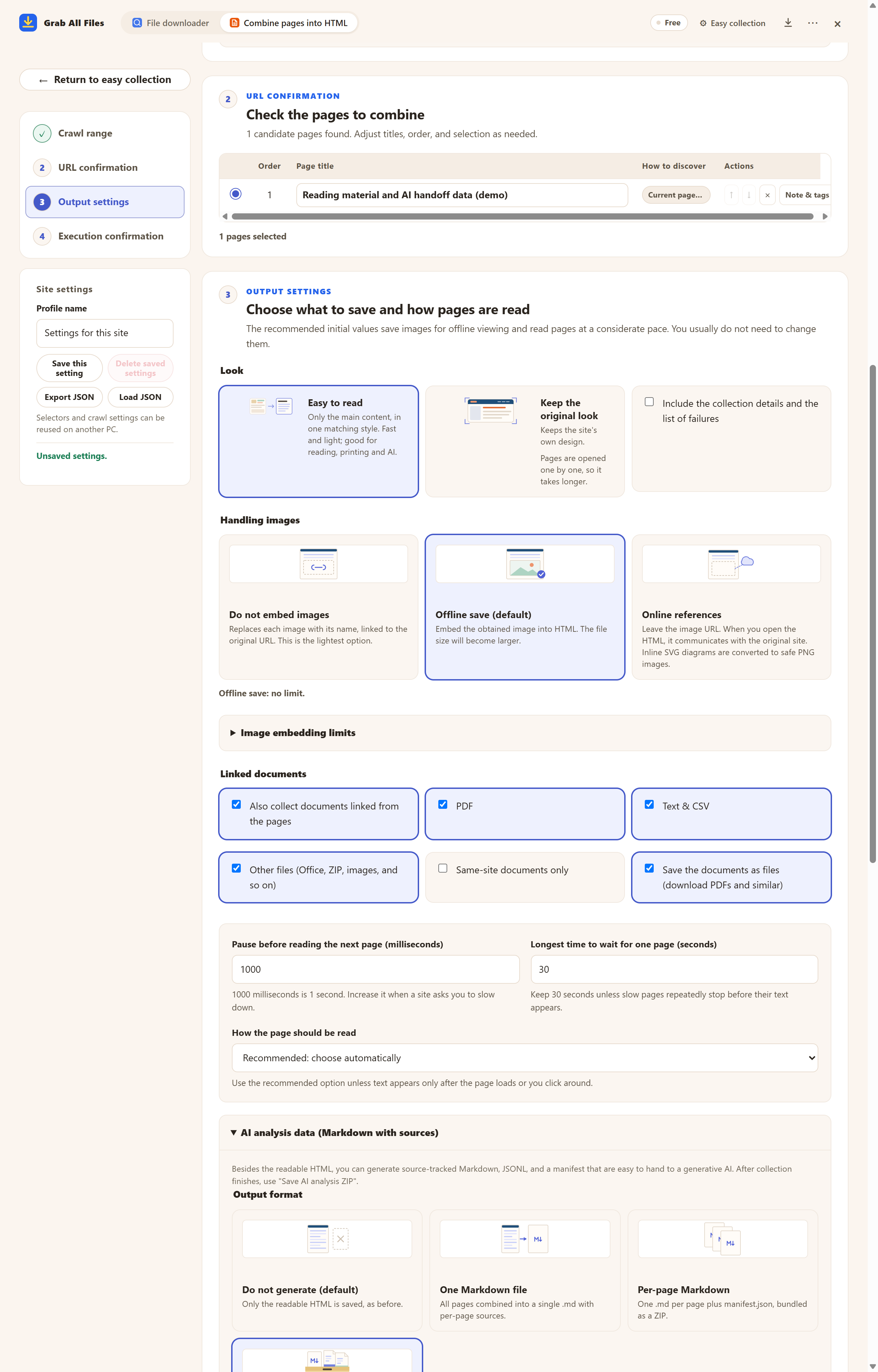
Actual extension screen using sample materials. Check the selected page and choose Full package for AI-ready data before collection. A Free example with one selected page, showing settings and controls before saving. Pro combines multiple selected pages as described in this guide.
Open the full-size image ↗
This menu offers AI ZIP saving and request-text copying.
Open the full-size image ↗



Pictures and names are the extension’s own cards.
Use the HTML table of contents to jump to a section and search words across the collected material. Revisit the saved information whenever you need it.
Use source-tracked material and the request text to ask an external AI tool for summaries, comparisons or condition extraction. Select the files you need and reuse the same material with different questions.
Compare eligibility, exclusions and exceptions stated in these documents. Cite the source URL for each finding and mark missing information as ‘not stated in the supplied material’.
List the steps and prerequisites for this task. Identify where the manuals disagree and cite the relevant source passages.
Extract the stated eligibility, documents and deadlines into a comparison table. Include source URLs and capture dates; check the current official page before acting.
| Output | How to use it |
|---|---|
| HTML | Read with a table of contents and text search. Linked documents remain links; their text is not merged into the HTML. |
| Markdown / JSONL / manifest | AI inputs include source_url and captured_at. Markdown carries readable text; JSONL organizes headings and the manifest lists the material. |
| CSV / JSON tables | With per-page or full-package output selected and table export enabled, meaningful HTML tables can be extracted within supported limits. Layout tables are excluded; review the result. |
No. Collection and export run on your device. You save the AI ZIP, copy the request and decide which files to pass to an external AI tool. Its supported formats and privacy settings apply.
Use pages you are allowed to access. Successfully read text from selected linked documents, such as supported PDF, text, CSV, Word or Excel files, can be included in AI output. Not every document or image can be read; review failures and missing content.
Free discovers candidates and saves exactly one chosen page as HTML. Pro lets you select and combine multiple page bodies. Authentication, permissions and safety limits still apply.
Support varies. Extract the ZIP and provide accepted files if needed. The default 25 MB setting is a Markdown-text splitting target, not a guarantee of total ZIP size. Confirm the AI service’s upload limits.
Follow the source URLs and captured_at values in the AI output, then compare the answer with the actual wording and current source. Missing material does not prove that a condition or exception is absent.
Collection uses your own browser session and does not collect credentials. If a page is marked “Sign-in needed”, press “Open the site to sign in”, sign in in that tab, then press “Resume”. Pages that still need a sign-in are not saved, and the result says how many were left out.
Some sites add text only after you scroll or click. Open “If a page is missing text: content and JavaScript settings”, turn on “Scroll down to load content that appears later” or “Press ‘Show more’ to include the continuation”, and collect again. If the wrong part of the page was kept, use “Select on screen” there to pick the main text.
Free saves up to 10 files per download in the file downloader, and one chosen page per run when you combine pages into HTML; that page’s linked files are saved 10 at a time with “Save the next 10”. Pro ($19.99 one-time, up to 3 devices) removes the per-download cap and combines multiple pages into one HTML.