
Organize reports by reporting period.
Keep an issuer’s earnings releases, presentations and annual reports in a traceable reading set. Check the fiscal year and quarter on each original document, then use clear names to prepare material for your own review or an external AI tool.
Review the source list
- FY2026-Q1.pdf
- FY2026-annual.pdf
- FY2026-presentation.pdf
Choose the required files
- FY2026-Q1.pdf
- FY2026-annual.pdf
- FY2026-presentation.pdf
Prepare an organized set
Sample set/
├ FY2026-Q1.pdf
├ FY2026-annual.pdf
├ FY2026-presentation.pdf
└ files.csv
Names and groups shown here are examples. Check and name files yourself; native folder options are by type or domain.
IR & financial report PDFs in the extension
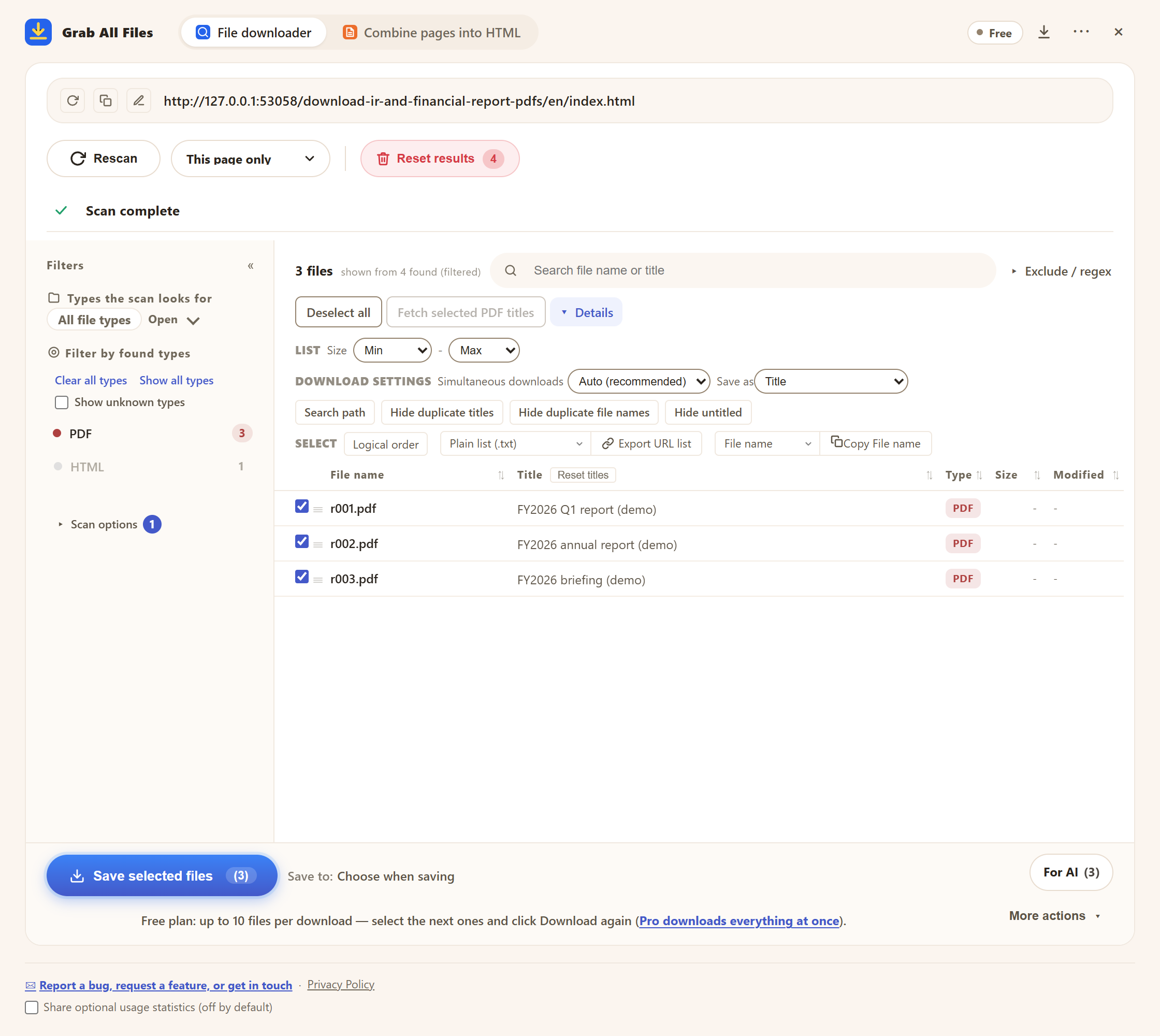
Actual extension screen using sample materials. Edited sample reporting-period titles and PDF save-name settings.
Open the full-size image ↗How the file downloader works
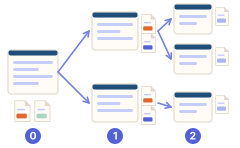
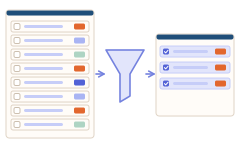
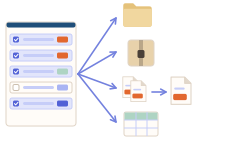
Best for
- ✓Collecting a single issuer’s annual or quarterly disclosure package.
- ✓Preparing selected source documents for a manually requested summary or comparison.
Workflow
- 1Open the issuer’s official IR archive and choose a fiscal year or quarter. Review releases, presentation material and published Q&A separately.
- 2Open Grab All Files and scan the page for that period. Filter to PDF (add Excel if the issuer publishes data sheets) and tick only the release, presentation and report for that period.
- 3Verify issuer, reporting period, publication date and revisions. Add a period prefix to titles where useful; work in separate period batches to avoid mixing reports.
- 4Double-click each title to add the period (for example “FY2025 Q2 – Presentation”), set “Save as” to “Title” in “Details”, then download or save a ZIP per period (Free: 10 files per download). Use “Export File Info CSV” to keep the source URLs.
- 5Read the saved sources or manually give supported files to your chosen AI service. Check units, accounting scope and numbers against the original PDFs. The extension does not make investment decisions or guarantee numeric extraction.
An example of published source materials
This link illustrates how documents are published. It is not an affiliation or a compatibility test.
FAQ
Are fiscal years and quarters detected automatically?
No. Review the period labels in the issuer’s documents and choose names or batches yourself. Fiscal years need not match calendar years.
Does the CSV contain financial statement values?
No. File-information CSV records file metadata and links. It does not extract financial statement tables or guarantee complete numerical data.
Can it analyze investments or send reports to AI?
It prepares files and links. You choose and send suitable materials to an external AI service manually and verify its output. No investment recommendation or analysis accuracy is promised.
Can I use this for free?
Yes. Free saves up to 10 selected files per download, ZIP or file-information CSV. For more, select the next files and press the button again; nothing is locked. Pro ($19.99 one-time, up to 3 devices) removes the per-action cap.
Older years sit behind “Show more” or a long list. Can it find them?
Open “Scan options”, turn on “Scroll & load everything before scanning” and scan again so the list loads completely. If each year has its own tab or page, open and scan them in turn. Some IR sites link reports through a viewer; check the detected source page before saving.
Related use-case guides
Try Grab All Files on your browser.
Free saves up to 10 files per download in the file downloader, and one chosen page per run when you combine pages into HTML; that page’s linked files are saved 10 at a time with “Save the next 10”. Pro ($19.99 one-time, up to 3 devices) removes the per-download cap and combines multiple pages into one HTML.