
Find pages to review
Use the previous-collection report to narrow down added or changed pages. Keep collection scope comparable.
Keep separate copies so you can explain which wording you reviewed. Use the collector’s previous-run change report to find affected pages, then read the before-and-after material or ask an external comparison tool or AI about the actual content.
Keep previous and current pages
Save the change report
/new/guide/notesReview before and after
Manual handoff
| Before | After |
|---|---|
| Form | Form + Attachment |
Compare this extension’s most recent completed collection on the same site with the current pages, using comparable scopes. You review the originals; this is not automatic monitoring or a line-by-line diff. Unavailable entries do not prove site deletion.
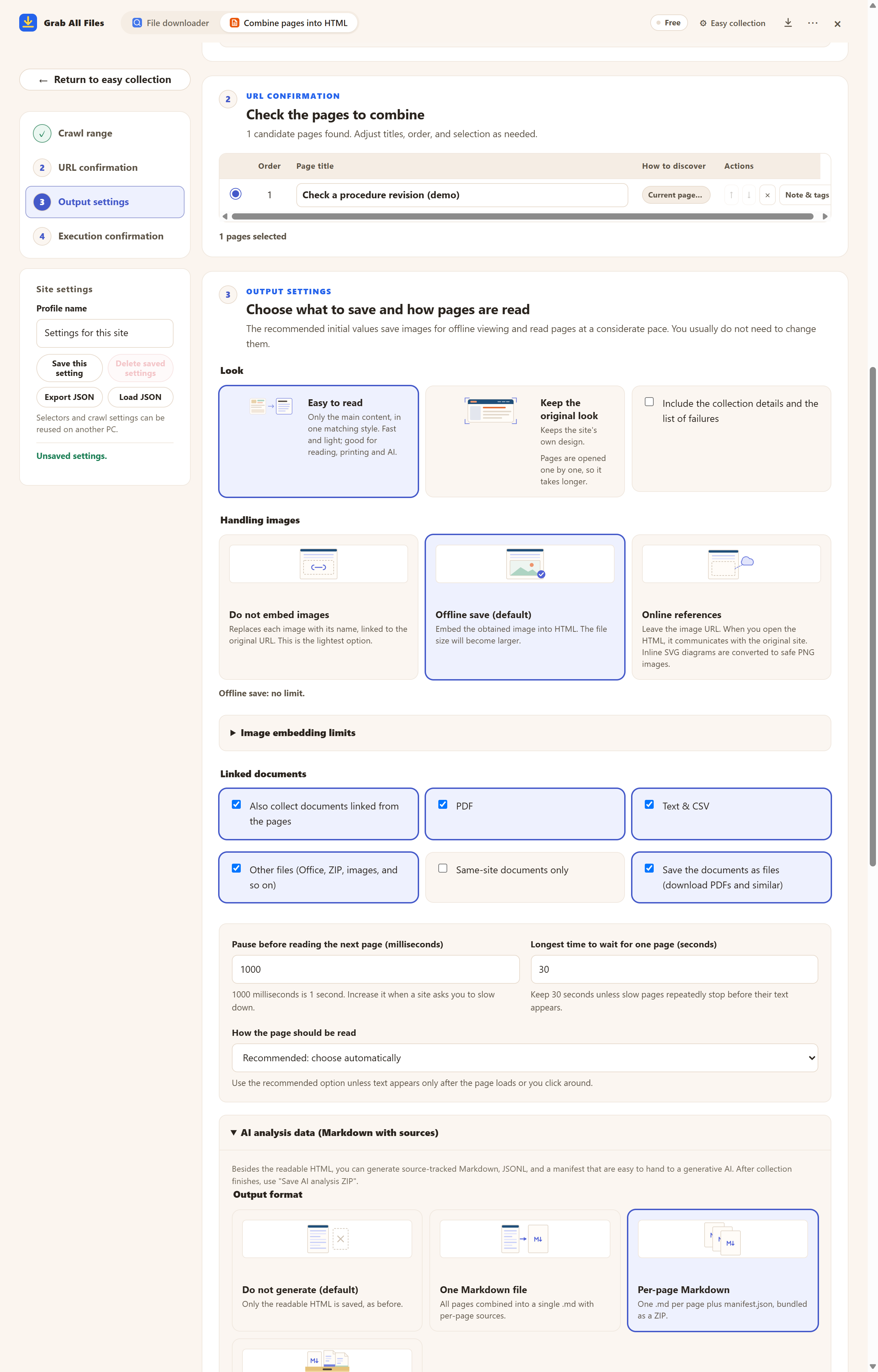
Actual extension screen using sample materials. Confirm the pages to collect again and their output settings before recollection. A Free example with one selected page, showing settings and controls before saving. Pro combines multiple selected pages as described in this guide.
Open the full-size image ↗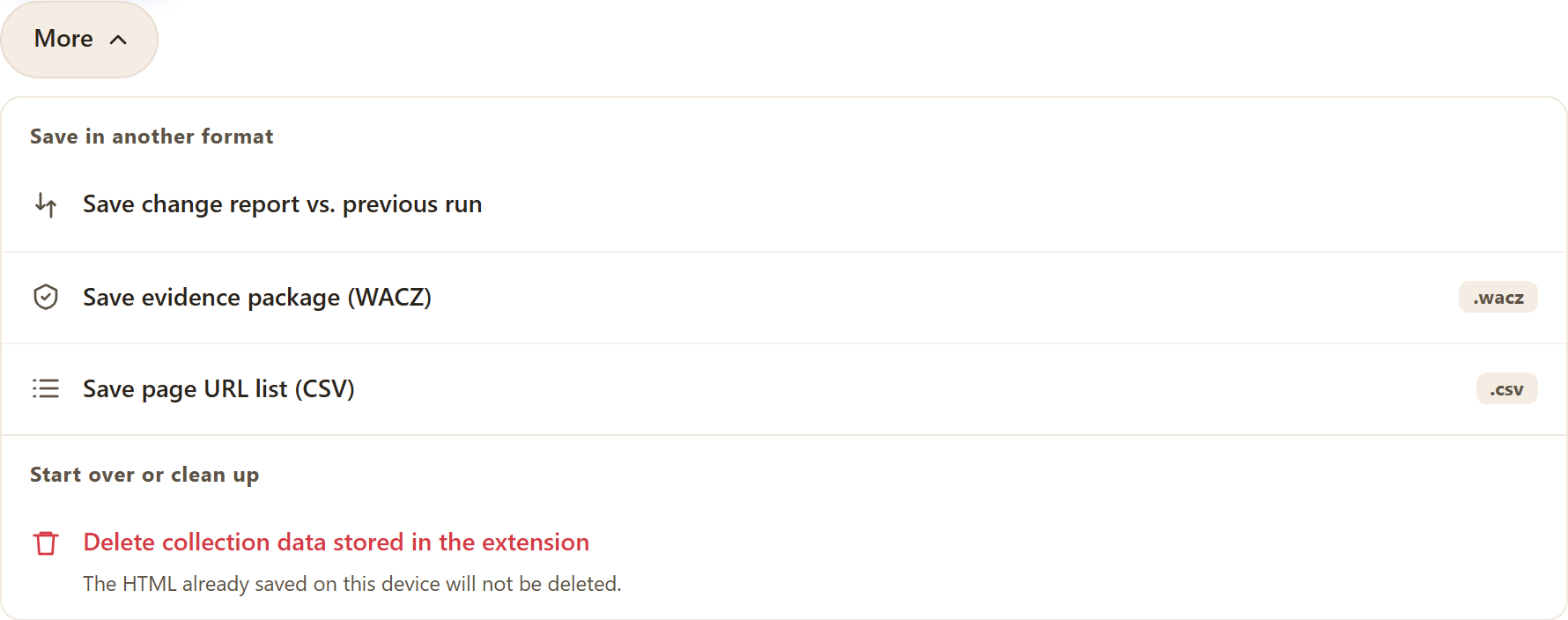
Choose the action for saving a change report against the previous completed collection on the same site.
Open the full-size image ↗


Pictures and names are the extension’s own cards.
Use the previous-collection report to narrow down added or changed pages. Keep collection scope comparable.
Read saved originals or use external tools to compare requirements and exceptions. Verify findings in both versions.
Compare only the supplied before and after materials. List changed steps, requirements and exceptions with supporting passages and source URLs. Mark uncertain comparisons rather than inferring a revision.
| Material | Role |
|---|---|
| Before / after HTML | Store separately and read collected page content with context. |
| Previous-run Markdown report | Summarizes changes relative to the same site’s previous completed collection. |
| Source notes / AI export | Record the manual’s stated revision yourself. Use AI source URLs and capture dates for checking. |
The report uses this extension’s most recent completed collection before the current one on the same site. It summarizes page-URL, title and collected-body changes, not line-by-line or official-revision interpretation. For arbitrary saved PDFs or other before/after files, compare their content in an external tool.
No. It may reflect different selection, collection failure or unavailable content. Compare the page scope and results before treating it as a source deletion.
You collect again manually. Use previously saved material or versions published by the source; it does not monitor pages automatically or recover an older version you never saved.
Record the source’s stated revision yourself in titles or notes; the source URLs and capture dates in the AI output help with tracing. Free saves one chosen page per run, so compare one key page at a time; Pro collects multiple selected pages, which suits comparing a whole section.
Collection uses your own browser session and does not collect credentials. If a page is marked “Sign-in needed”, press “Open the site to sign in”, sign in in that tab, then press “Resume”. Pages that still need a sign-in are not saved, and the result says how many were left out.
Some sites add text only after you scroll or click. Open “If a page is missing text: content and JavaScript settings”, turn on “Scroll down to load content that appears later” or “Press ‘Show more’ to include the continuation”, and collect again. If the wrong part of the page was kept, use “Select on screen” there to pick the main text.
Free saves up to 10 files per download in the file downloader, and one chosen page per run when you combine pages into HTML; that page’s linked files are saved 10 at a time with “Save the next 10”. Pro ($19.99 one-time, up to 3 devices) removes the per-download cap and combines multiple pages into one HTML.