
Save the arXiv papers you need.
Search on arXiv first, then turn the results you are viewing into a reading folder. Grab All Files scans that page for PDFs and supported public file links; you review the list and choose what to save.
How the file downloader works
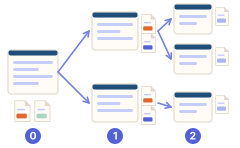
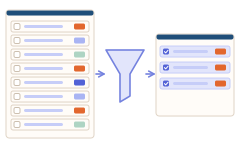
Choose the paper list
- Graph learning overview
- A method comparison
Review and select PDFs
- Graph learning overview.pdf
- A method comparison.pdf
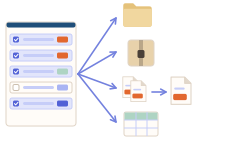
Save a research folder
Research papers/
├ Graph learning overview.pdf
├ A method comparison.pdf
└ files.csv
Illustrative example with fictional titles. Search on arXiv first; scan and save only the files you choose.
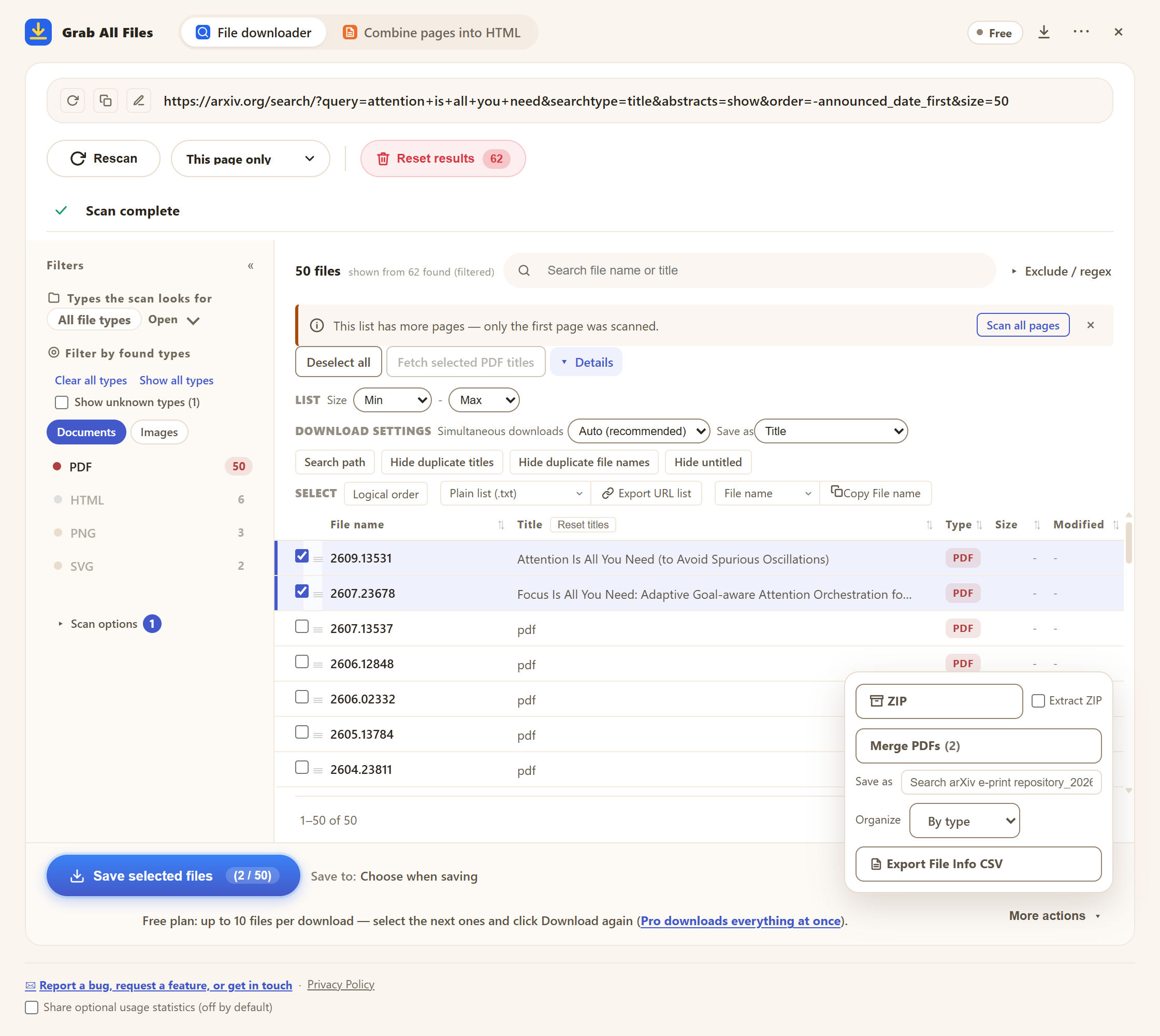
The actual extension on arXiv
Best for
- ✓Build a reading list from a focused search or category page.
- ✓Save selected paper PDFs with names you can recognize.
- ✓Keep public, supported linked files and a file-list CSV alongside your papers.
Workflow
- 1Use arXiv search to narrow the topic, category and date range. Open the results or paper list you want to work with.
- 2Open Grab All Files and scan the displayed page. On arXiv’s search page, choose 200 results per page first so one scan sees the whole list. Review the detected titles and source URLs; “Fetch selected PDF titles” reads titles from the PDFs themselves.
- 3Filter by PDF and select the papers you need. Free saves 10 per download, so tick the next 10 and press “Save selected files” again to continue. Review other public file links separately and choose only supported files relevant to your work.
- 4Check or edit titles, choose title-based saving and a folder option. Save the selection as files or ZIP; export the file-list CSV for a record of the URLs.
- 5Open the saved PDFs and review the results. Keep the source URL and paper version in your notes. For a large corpus, use arXiv’s official bulk services.
Use the right arXiv access route
For a personal reading set, review a focused list and save the papers you need. For large collections, use arXiv’s official bulk access; its API provides metadata. Read the access guidance before automated collection.
FAQ
Does the extension search all of arXiv for my topic?
No. Search and refine the results on arXiv itself. The extension scans the page you choose; it is not a scholarly search engine or a complete arXiv downloader.
What about PDF links without a .pdf extension?
arXiv PDF URLs such as /pdf/paper-id can be recognized as PDFs. Review the detected file type and URL before saving.
Can I save TeX, datasets and code too?
Only public links that are found and match a supported file format can be selected. TeX sources, datasets and code are not present or downloadable for every paper; following an external repository may require a separate visit.
Can I save these papers for free?
Yes. Free saves up to 10 selected files per download; select the next papers and press “Save selected files” again. Pro ($19.99 one-time, up to 3 devices) removes the per-download cap.
How do title names, ZIP and CSV help?
Review or edit a title before saving. Automatic naming can fall back to the original name when no useful title is available. Type and domain folders are alternative options. ZIP packages selected files; CSV records their file information and URLs.
Is this an official arXiv tool?
No. Grab All Files is an independent tool, not affiliated with arXiv. Follow arXiv’s access guidance and each paper’s reuse terms. Use the official API for metadata, and official bulk access for large-scale PDF or full-text collection.
Related use-case guides
Try Grab All Files on your browser.
Free saves up to 10 files per download in the file downloader, and one chosen page per run when you combine pages into HTML; that page’s linked files are saved 10 at a time with “Save the next 10”. Pro ($19.99 one-time, up to 3 devices) removes the per-download cap and combines multiple pages into one HTML.