
Keep product documents together.
Build a working set of catalogs, specification PDFs and datasheets for the products you are comparing. Choose the correct model, region and edition before saving; keep source links with the files for later checking.
Review the source list
- Product-A-catalog.pdf
- Product-A-specification.pdf
- Product-A-datasheet.pdf
Choose the required files
- Product-A-catalog.pdf
- Product-A-specification.pdf
- Product-A-datasheet.pdf
Prepare an organized set
Sample set/
├ Product-A-catalog.pdf
├ Product-A-specification.pdf
├ Product-A-datasheet.pdf
└ files.csv
Names and groups shown here are examples. Check and name files yourself; native folder options are by type or domain.
Product catalogs & datasheets in the extension
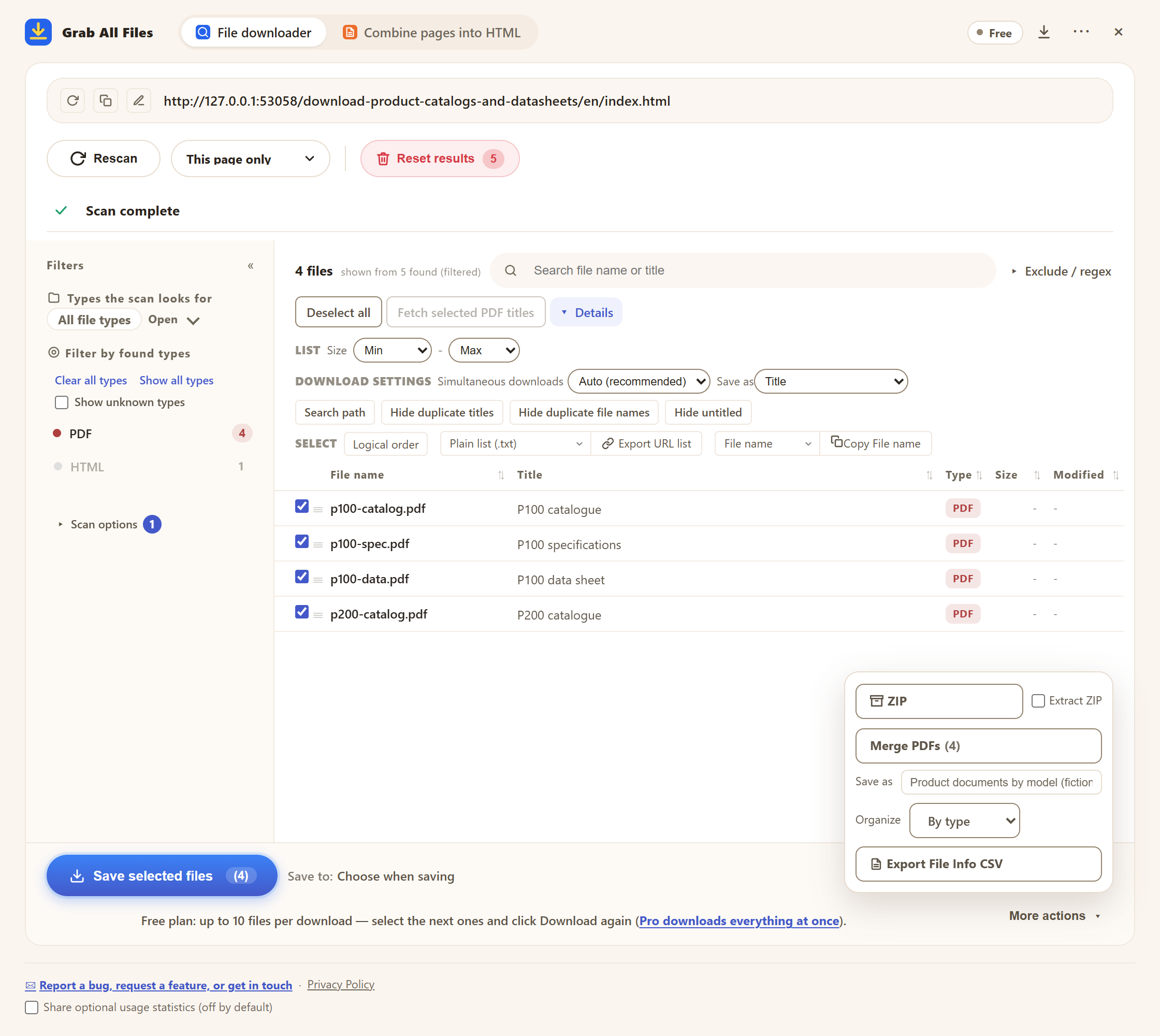
Actual extension screen using sample materials. Reviewed sample model PDFs, title saving and file-type folders.
Open the full-size image ↗How the file downloader works
Best for
- ✓Product shortlists that need a catalog and a detailed specification.
- ✓Equipment or component records organized by a reviewed model name.
Workflow
- 1Open the manufacturer’s download page for the product family you need. Keep other models, software and member-only areas outside your chosen set.
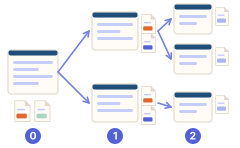
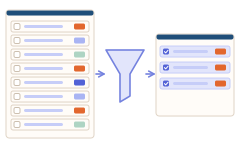
- 2Open Grab All Files and scan the product family page. If each model has its own page inside the starting page’s folder, raise “Depth” to 1. Filter to PDF and tick the catalog, specification and datasheet for the models you need.
- 3Check model numbers, language, revision dates and document roles. Edit titles to distinguish a catalog from a specification or datasheet.
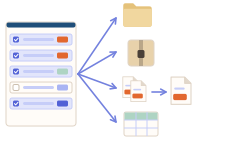
- 4In “Details”, set “Save as” to “Title” so your edited names are used, and in “More actions” set “Organize” to “By type” to keep PDFs apart from spreadsheets and archives. Download or save a ZIP (Free: 10 files per download); “Export File Info CSV” keeps the source URLs.
- 5Open the saved documents and compare the stated conditions against the source. Keep a note of the model and edition; this folder is reference material, not an automatic product suitability assessment.
An example of published source materials
This link illustrates how documents are published. It is not an affiliation or a compatibility test.
FAQ
Will it collect every model’s documents?
It finds supported file links in the scope you scan. Select the right models and check the source list; hidden or separate download areas may require another visit.
Does it classify files by model automatically?
No. You review the model and name files or split your work into model-specific batches. Native folder grouping is by type or domain.
Can it extract a specification comparison automatically?
The file-information CSV lists files, not values from their specification tables. Use the original documents or a separate table/AI workflow and verify any comparison.
Can I use this for free?
Yes. Free saves up to 10 selected files per download, ZIP or file-information CSV. For more, select the next files and press the button again; nothing is locked. Pro ($19.99 one-time, up to 3 devices) removes the per-action cap.
A datasheet appears only after a form or a download button. Can it get it?
If the site asks for a request form, submit it yourself first, then scan the page that lists the files. When a download is started by the site’s own JavaScript, “Active Capture” lets the page start each download so the files can still be saved together. Member-only documents are available only while your browser is signed in.
Related use-case guides
Try Grab All Files on your browser.
Free saves up to 10 files per download in the file downloader, and one chosen page per run when you combine pages into HTML; that page’s linked files are saved 10 at a time with “Save the next 10”. Pro ($19.99 one-time, up to 3 devices) removes the per-download cap and combines multiple pages into one HTML.