
Turn selected file links into a list.
Export a reusable inventory of selected files: URL, filename, title, type and available metadata. Import the CSV into Excel to filter, check and share a document list without treating it as the contents of the documents themselves.
Choose file rows
File Type catalog.pdf PDF form.docx DOCX data.csv CSV Export File Info CSV
URL,Filename,Type,Source page https://example.org/catalog.pdf,catalog.pdf,PDF,https://example.org/downloadsImport manually into Excel
ExcelFile Type catalog.pdf PDF form.docx DOCX data.csv CSV
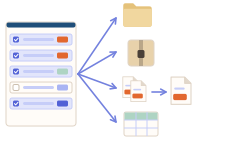
Names and groups shown here are examples. Check and name files yourself; native folder options are by type or domain. The CSV drawing shows a four-column excerpt; the actual ten headers are described in the FAQ.
File links to CSV in the extension
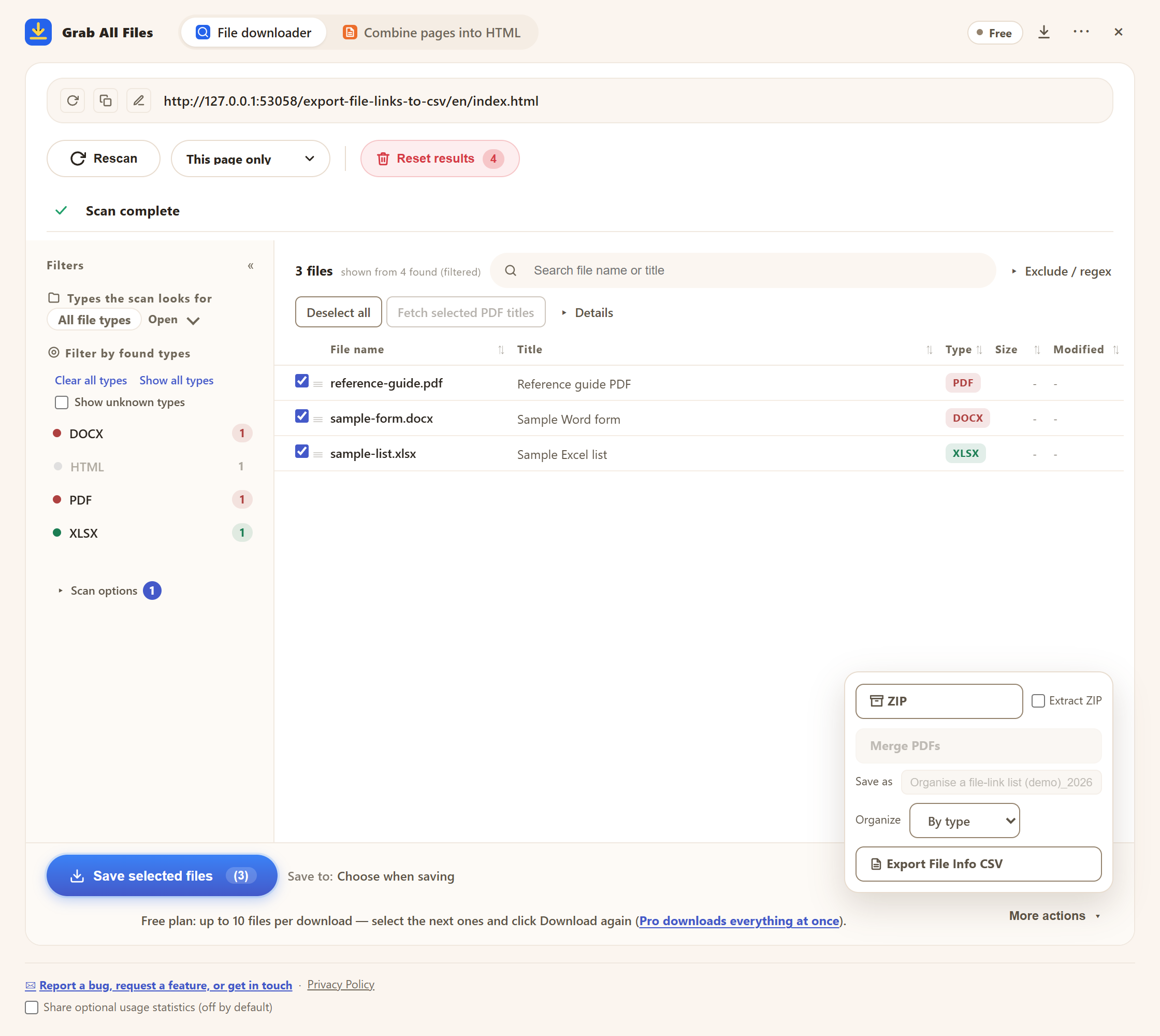
Actual extension screen using sample materials. Selected sample files and the file-information CSV menu.
Open the full-size image ↗How the file downloader works
Best for
- ✓Maintaining an inventory of a selected document set.
- ✓Checking source URLs or comparing filenames and available metadata in Excel.
- ✓Handing a reviewed file list to a colleague before anyone downloads the files.
Workflow
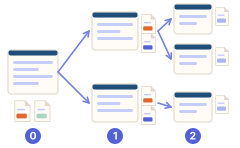
- 1Open the page that lists the files, click the Grab All Files icon and press “Scan”. Raise “Depth” to include linked pages inside the starting page’s folder.
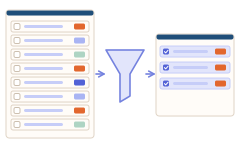
- 2Filter to the file types you need and tick the rows that belong in your inventory (Free: up to 10 rows per export).
- 3Open “More actions” and press “Export File Info CSV”. For a longer list, tick the next rows and export again.
- 4In Excel, use Data → From Text/CSV, choose UTF-8 and set URL and ID columns to Text. Check the rows against the selected files.
FAQ
Is this the same as exporting a web table?
No. This CSV is a file inventory. To turn the HTML tables on a page into CSV, use “Combine pages into HTML” with the AI analysis data; supported tables are saved as CSV files.
Which columns are exported?
The stable headers are URL, Filename, Title, Type, Confidence, Evidence, Size, Size (bytes), Modified and Source page. Unknown size, date or source information can be blank.
Does it include every file on the site?
No. It exports the detected rows you select — up to 10 per export on Free, no cap on Pro. Check coverage and scan another page or Depth if needed.
Can I use this for free?
Yes. Free exports up to 10 selected rows per CSV and saves up to 10 files per download. For a longer inventory, tick the next rows and press “Export File Info CSV” again. Pro ($19.99 one-time, up to 3 devices) removes the per-action cap.
Is the file list uploaded anywhere?
No. The CSV is created in your browser and saved straight to your device; the list is not sent to Grab All Files servers.
Related use-case guides
Try Grab All Files on your browser.
Free saves up to 10 files per download in the file downloader, and one chosen page per run when you combine pages into HTML; that page’s linked files are saved 10 at a time with “Save the next 10”. Pro ($19.99 one-time, up to 3 devices) removes the per-download cap and combines multiple pages into one HTML.