
Chapter-based HTML
Select the chapters you need and arrange them as a readable HTML reference. Its table of contents and search help you return to the relevant section.
Choose only the chapters you need, set the reading order and save them. Read the HTML text with the table of contents and search; keep PDF files separately with the file download. Free saves one selected page; combining several pages is a Pro feature.
See a finished manual collection →
Free: one page per run. Combining several chapters into one file is Pro. PDF documents are saved separately with the file download.
Files actually saved by Grab All Files 5.8.20 from fictional pages hosted on this site, with the settings used and each file’s hash. Free samples come from the released build; Pro samples from a developer build of the same source.
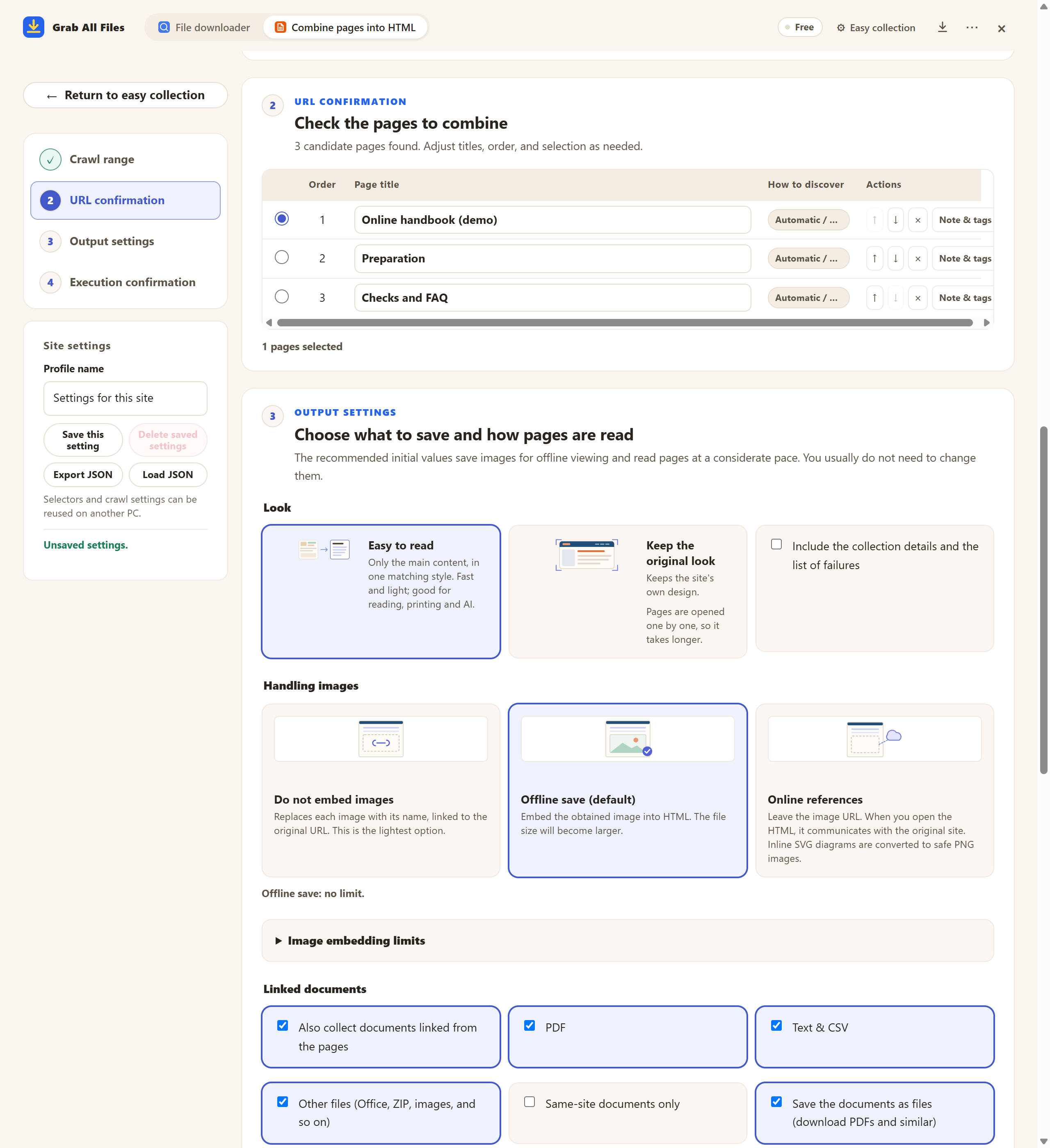
Actual extension screen using sample materials. Selecting pages from a sample manual. A Free example with one selected page, showing settings and controls before saving. Pro combines multiple selected pages as described in this guide.
Open the full-size image ↗



Pictures and names are the extension’s own cards.
Select the chapters you need and arrange them as a readable HTML reference. Its table of contents and search help you return to the relevant section.
Check whether the PDF file URL or download link can be obtained. Save the PDF itself with the file downloader and keep it alongside the explanatory HTML.
Review discovered candidates against the menu, choose relevant articles and adjust their order. Check the saved result against the original articles.
| Material | How to keep it |
|---|---|
| HTML reference | Read the collected page bodies with contents and search. Check the sections you actually saved. |
| Original PDFs | Keep them as separate files beside the explanatory HTML. Document links in HTML do not merge the PDF text into the page body. |
| Reference notes | Record source URLs, the date checked and the revision stated in the manual. Note when the revision is not stated. |
Using only this material, list the procedure, prerequisites and required documents. Cite the supporting passages and source URLs. Mark missing information as ‘not stated in the supplied material’ instead of guessing.
See how to prepare files and questions for external AI analysis →
Compare the candidate list with the original menu and add needed URLs where appropriate. After saving, compare the headings and collection results with the originals. This lets you review what was saved without assuming every menu item was found.
Check the actual PDF URL or download link in the file downloader, then save the obtainable PDF as a separate file. Collect the explanation as HTML and manage both together; the PDF text is not merged into the HTML body.
Yes. Free discovers candidates and saves one chosen page as HTML. Pro lets you select, reorder and combine multiple page bodies. Existing authentication, permission and safety limits apply.
Check the original page’s revision label and record it in your own title or notes, along with its URL and the date checked. The HTML’s overall capture date and AI output’s page-level source URLs and capture dates can help with checking; a manual’s revision needs your confirmation.
Enable AI output before collection, then save the AI ZIP and copy the request after collection. Choose appropriate files and manually give them to your external AI service, extracting the ZIP if needed. Check its answer against the supplied source wording.
Collection uses your own browser session and does not collect credentials. If a page is marked “Sign-in needed”, press “Open the site to sign in”, sign in in that tab, then press “Resume”. Pages that still need a sign-in are not saved, and the result says how many were left out.
Some sites add text only after you scroll or click. Open “If a page is missing text: content and JavaScript settings”, turn on “Scroll down to load content that appears later” or “Press ‘Show more’ to include the continuation”, and collect again. If the wrong part of the page was kept, use “Select on screen” there to pick the main text.
Free saves up to 10 files per download in the file downloader, and one chosen page per run when you combine pages into HTML; that page’s linked files are saved 10 at a time with “Save the next 10”. Pro ($19.99 one-time, up to 3 devices) removes the per-download cap and combines multiple pages into one HTML.