
Readable guidance
Use HTML for the overview and selected explanation pages. Its contents and search help you find a section.
Put a scheme overview, its detailed guidance and the relevant attachments in one reference folder. Read selected page bodies as HTML and keep original documents beside them, so you can return to the right source without searching again.
Find pages and original PDFs
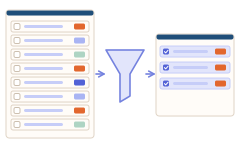
Choose the needed material
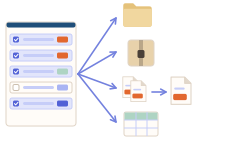
Keep a set and page-state CSV
Reference set/
├ Overview.html
├ Form.pdf
└ pages.csv| Page URL | State |
|---|---|
| example.org/overview.html | Saved |
| example.org/guide.html | Unavailable |
Collect what you need and check the originals. A complete set is not guaranteed; PDFs remain separate files.
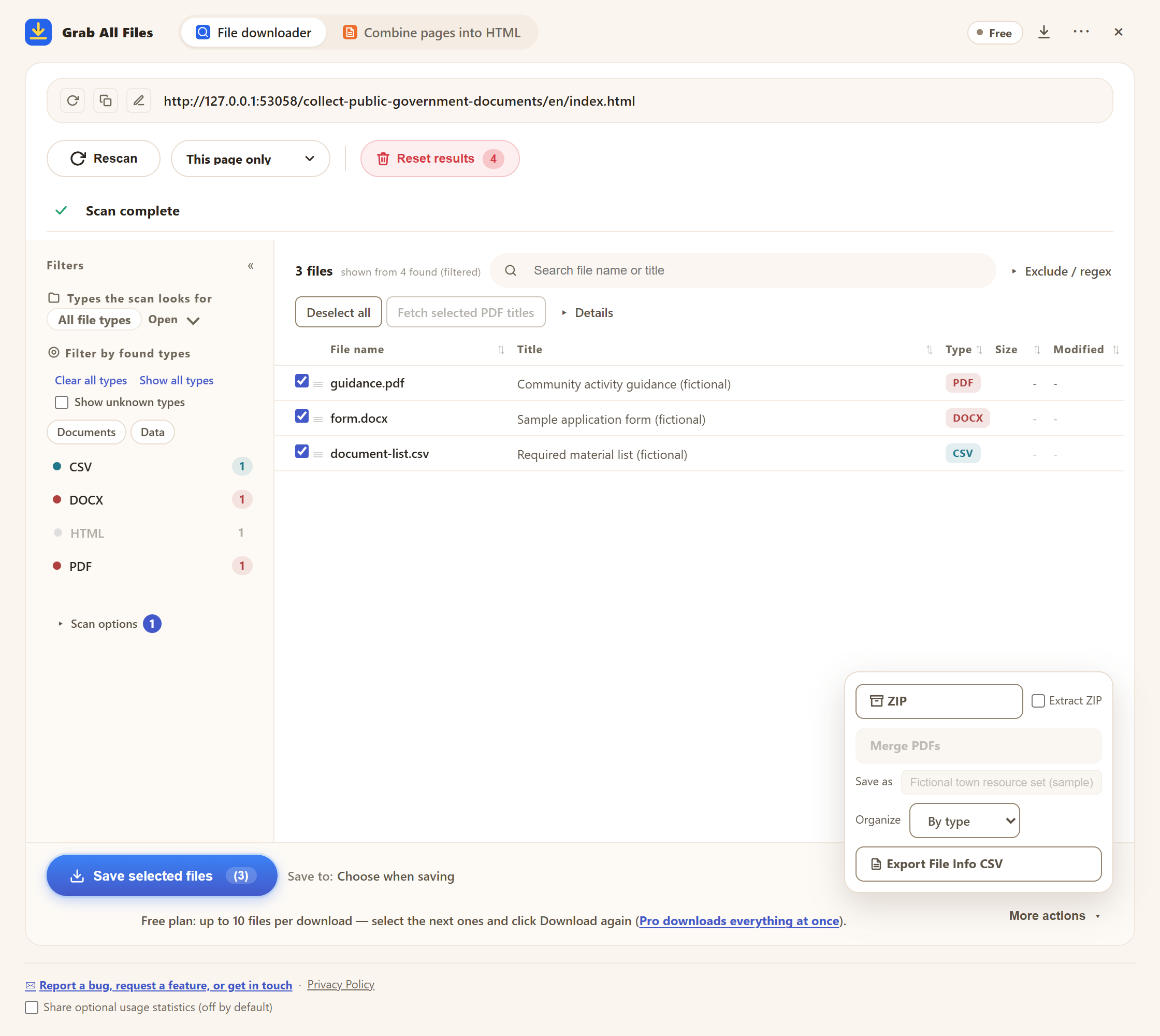
Actual extension screen using sample materials. Selecting sample public files and file-information CSV controls.
Open the full-size image ↗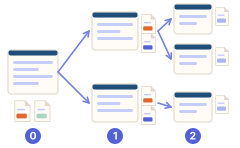
Use HTML for the overview and selected explanation pages. Its contents and search help you find a section.
Keep PDF and Word files in a separate ZIP or folder, with their original names where useful.
Overview → detailed guidance → linked PDF instructions and Word forms. Choose only the items needed for that topic.
For each point, note the source URL, date checked and any stated revision. Mark material you could not obtain as missing.
| Output | Use |
|---|---|
| HTML | Read selected guidance pages with contents and search. |
| Original files / ZIP | Keep attachments in their original formats for reference. |
| Markdown / manifest | Review saved text and its source_url and captured_at. |
| Page list / file-information CSV | Keep the list of collected page URLs, titles, statuses and failure reasons, and use the file downloader’s file-information CSV to organize attachments. |
| Your reference note | Record stated revisions and your date checked; revise it when the source changes. |
Start with one scheme or service: overview, detailed guidance and the forms it links to. Review discovered candidates against the menu and remove unrelated news or topics. Site structure affects which links can be found.
Keep the original document separately. Linked PDF and Word text is not merged into the readable HTML. Successfully extracted text from supported documents can be included in AI output; check missing or failed documents.
Compare the saved pages and files with the needed official list. Record a stated revision yourself; capture time is not a document version. Recheck the current source before relying on a deadline or requirement.
Use source_url and captured_at from the AI output to identify saved material. Add the official document title and stated revision in your notes, and link each briefing point to the supporting source.
Yes. Free discovers candidates and saves one chosen page as HTML; Pro combines multiple selected page bodies. Start with the overview and needed attachments, then check the saved results against the source.
Free saves up to 10 files per download in the file downloader, and one chosen page per run when you combine pages into HTML; that page’s linked files are saved 10 at a time with “Save the next 10”. Pro ($19.99 one-time, up to 3 devices) removes the per-download cap and combines multiple pages into one HTML.