
Keep one opportunity’s documents together.
Prepare a review set for one tender or application call: notice, specifications, forms and published questions or answers. Preserve document roles and revisions so you can compare your saved set with the official listing.
Review the source list
- notice.pdf
- specification.pdf
- application.docx
Choose the required files
- notice.pdf
- specification.pdf
- application.docx
Prepare an organized set
Sample set/
├ notice.pdf
├ specification.pdf
├ application.docx
└ files.csv
Names and groups shown here are examples. Check and name files yourself; native folder options are by type or domain.
Tender & application documents in the extension
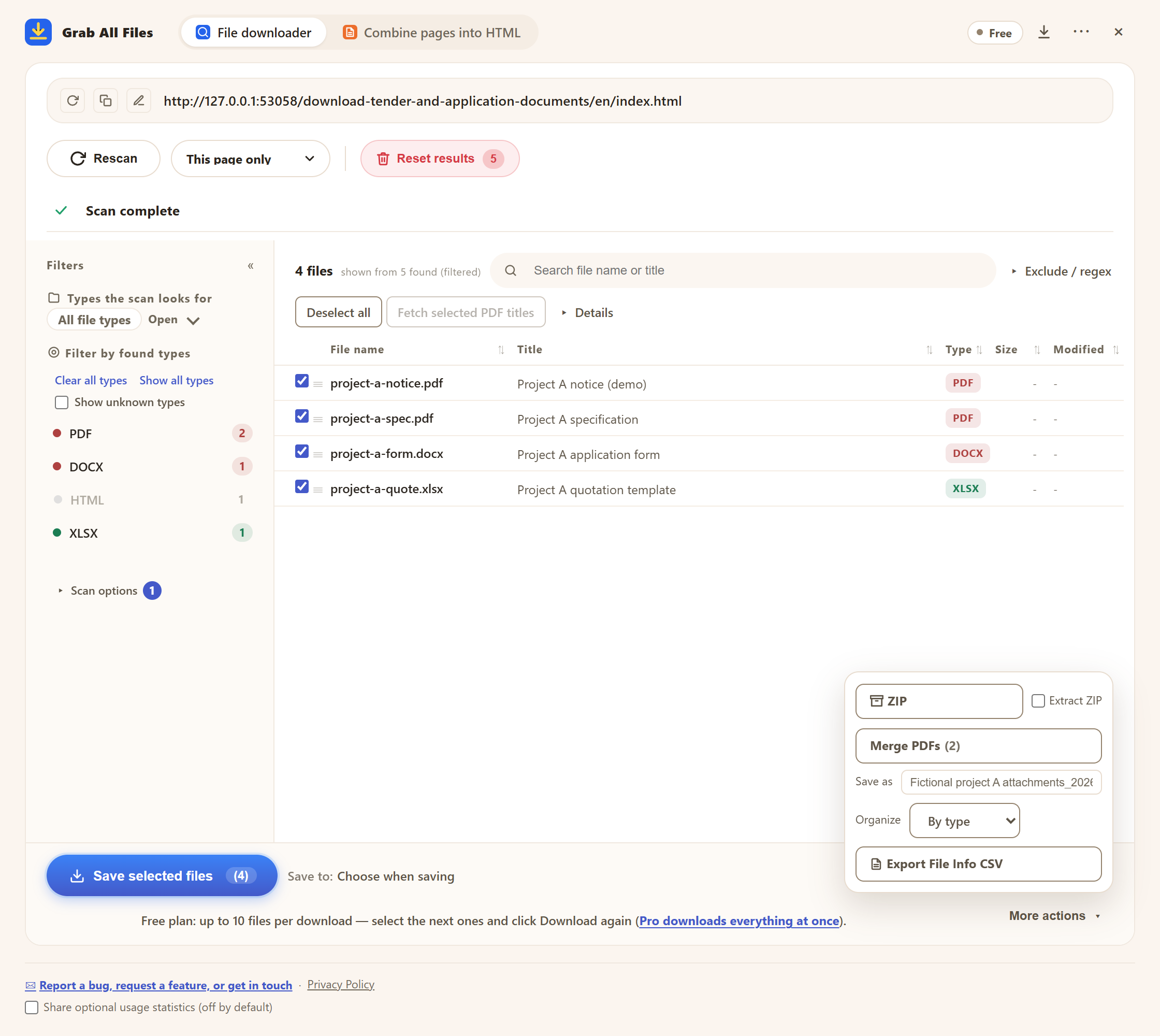
Actual extension screen using sample materials. A fictional opportunity’s documents and ZIP/file-saving menu.
Open the full-size image ↗How the file downloader works
Best for
- ✓Collecting the PDF, Word and Excel documents for one opportunity.
- ✓Keeping amended notices, forms and clarification material distinguishable.
Workflow
- 1Open the official page for one opportunity. Identify the notice, specifications, forms and any separate clarification or amendment links.
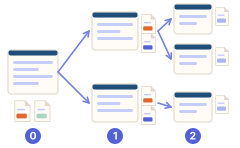
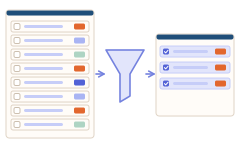
- 2Open Grab All Files and scan the opportunity page. Filter to the formats published (PDF, Word, Excel, ZIP) and tick the notice, specifications, forms and any clarification files.
- 3Check the opportunity name, version, deadlines and required document list. Keep forms in their original supported formats and use role-based filenames.
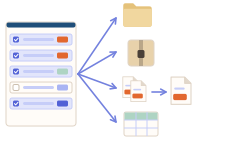
- 4Give each file a role-based title (notice, specification, form, Q&A) and, in “More actions”, set “Organize” to “By type” so editable forms stay separate. Save a ZIP for the opportunity (Free: 10 files per download) and use “Export File Info CSV” to compare against the official list.
- 5Compare saved files and the CSV with the official listing. Revisit the source for amendments or answers before preparing an application. Saving documents does not fill, sign or submit an application.
An example of published source materials
Ministry of the Environment, Japan ↗
This link illustrates how documents are published. It is not an affiliation or a compatibility test.
FAQ
Does one scan guarantee a complete application pack?
No. Check the official list and follow separate amendment or Q&A pages as needed. The result is limited to links found and files you choose.
Can it submit a bid or application?
No. This workflow saves reference files. Filling forms, signatures and submission remain separate actions under the issuer’s instructions.
Are later amendments monitored automatically?
No. Revisit the source and rescan manually. Keep revision notes and compare the originals; do not assume a saved copy is the latest.
Can I use this for free?
Yes. Free saves up to 10 selected files per download, ZIP or file-information CSV. For more, select the next files and press the button again; nothing is locked. Pro ($19.99 one-time, up to 3 devices) removes the per-action cap.
The portal needs a sign-in to show the documents. Does it still work?
Yes, while you are signed in: the scan uses your browser session and does not collect credentials. Rows marked “Login required to access this file” mean the session ended — sign in again and retry. If the portal asks you to accept terms before downloading, do that on the site first.
Related use-case guides
Try Grab All Files on your browser.
Free saves up to 10 files per download in the file downloader, and one chosen page per run when you combine pages into HTML; that page’s linked files are saved 10 at a time with “Save the next 10”. Pro ($19.99 one-time, up to 3 devices) removes the per-download cap and combines multiple pages into one HTML.