
Organize SDS and technical files by product.
Select the supplier documents for the exact product and keep SDS, TDS and related technical PDFs distinguishable. Check product names, language and revision details on the original documents before building a product reference set.
Review the source list
- Product-A-SDS.pdf
- Product-A-TDS.pdf
- Product-B-SDS.pdf
Choose the required files
- Product-A-SDS.pdf
- Product-A-TDS.pdf
- Product-B-SDS.pdf
Prepare an organized set
Sample set/
├ Product-A-SDS.pdf
├ Product-A-TDS.pdf
├ Product-B-SDS.pdf
└ files.csv
Names and groups shown here are examples. Check and name files yourself; native folder options are by type or domain.
SDS & technical documents in the extension
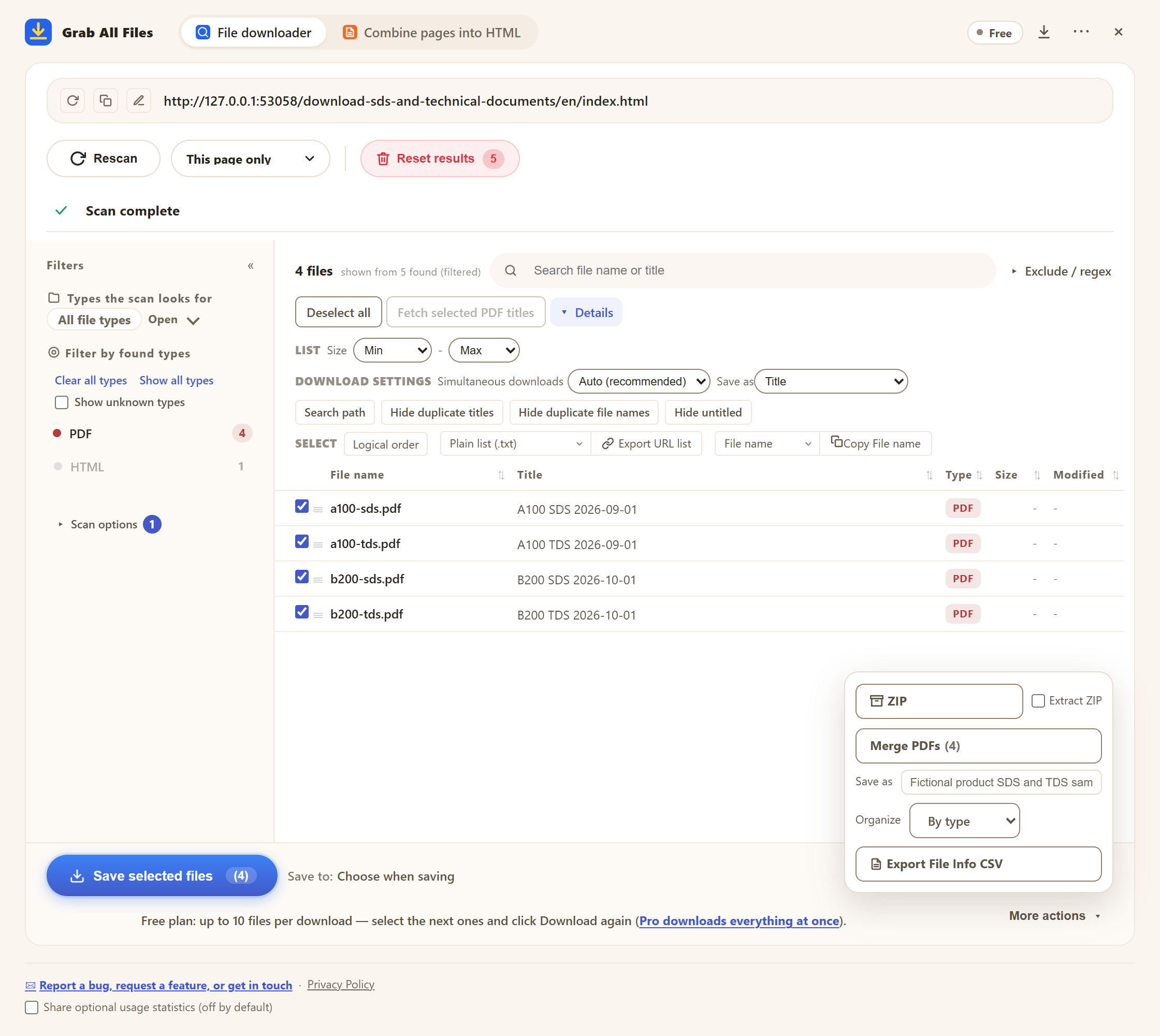
Actual extension screen using sample materials. Reviewed sample product/revision titles, PDFs and file-type folders.
Open the full-size image ↗How the file downloader works
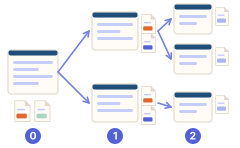
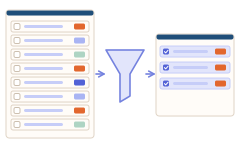
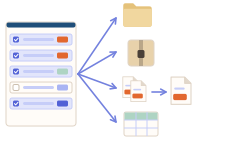
Best for
- ✓Maintaining a selected product’s SDS and technical reference files.
- ✓Keeping language and revision versions separate for later review.
Workflow
- 1Open the supplier’s document search or product page and narrow it to the exact product. Look for SDS and technical documents rather than unrelated product families.
- 2Open Grab All Files and scan the product or search-results page. Filter to PDF, check titles and source links, and tick only the SDS and TDS for that exact product and language.
- 3Check product name, document type, language and revision date. Review or edit titles and work in product-specific batches; keep the original file and source link.
- 4Double-click each title to add product, language and revision date, set “Save as” to “Title” in “Details”, then download or ZIP one product at a time (Free: 10 files per download). “Export File Info CSV” records the source URLs.
- 5Open the saved documents and confirm the matching product and edition with the supplier’s current source. This organizes reference material; it does not decide safe use, hazard classification or legal compliance.
An example of published source materials
This link illustrates how documents are published. It is not an affiliation or a compatibility test.
FAQ
Does it choose the correct SDS for me?
No. You check the product, region, language and edition on the supplier’s source and in the original document. Similar product names are not enough.
Can it decide safety or compliance?
No. The extension detects and saves files. It does not interpret hazards or determine whether a product or procedure complies with requirements.
Are SDS and TDS always available in every language?
Availability depends on the supplier and product. Check the published options and retain language and revision labels in your own names or notes.
Can I use this for free?
Yes. Free saves up to 10 selected files per download, ZIP or file-information CSV. For more, select the next files and press the button again; nothing is locked. Pro ($19.99 one-time, up to 3 devices) removes the per-action cap.
The supplier’s SDS search shows results only after I search. How do I scan them?
Run the search on the supplier’s site first so the results are on screen, then scan that results page. If more results load as you scroll, turn on “Scroll & load everything before scanning” in “Scan options”. Language or region selectors usually change the listed files, so scan once per language.
Related use-case guides
Try Grab All Files on your browser.
Free saves up to 10 files per download in the file downloader, and one chosen page per run when you combine pages into HTML; that page’s linked files are saved 10 at a time with “Save the next 10”. Pro ($19.99 one-time, up to 3 devices) removes the per-download cap and combines multiple pages into one HTML.