
Before a redesign or migration
Web teams and agencies keep the current site as it looks today, page by page, before it is rebuilt, moved to a new system or taken offline.
Choose “Keep the original look” to create HTML that uses the site’s styles, images and fonts. Results depend on how the page is built and which resources could be fetched. Free saves one page; combining several pages is Pro. Compare a real source page with its saved file to see what is kept and where the limits are.
Compare the source page and the saved HTML →
Free: one page per run. Combining several pages into one HTML file is Pro ($19.99, one-time). Videos, maps, sign-in screens and other interactive parts may not work in the saved file.
Choose the pages
Choose the look
One HTML, each page in its own design
example-site.html
├ Table of contents · search
├ Home
├ Products
├ Pricing
└ Support
Free keeps one page per run with its original design; Pro combines the pages you select. Shared stylesheets, images and fonts are stored once.
Files actually saved by Grab All Files 5.8.20 from fictional pages hosted on this site, with the settings used and each file’s hash. Free samples come from the released build; Pro samples from a developer build of the same source.
Kept
May not be kept
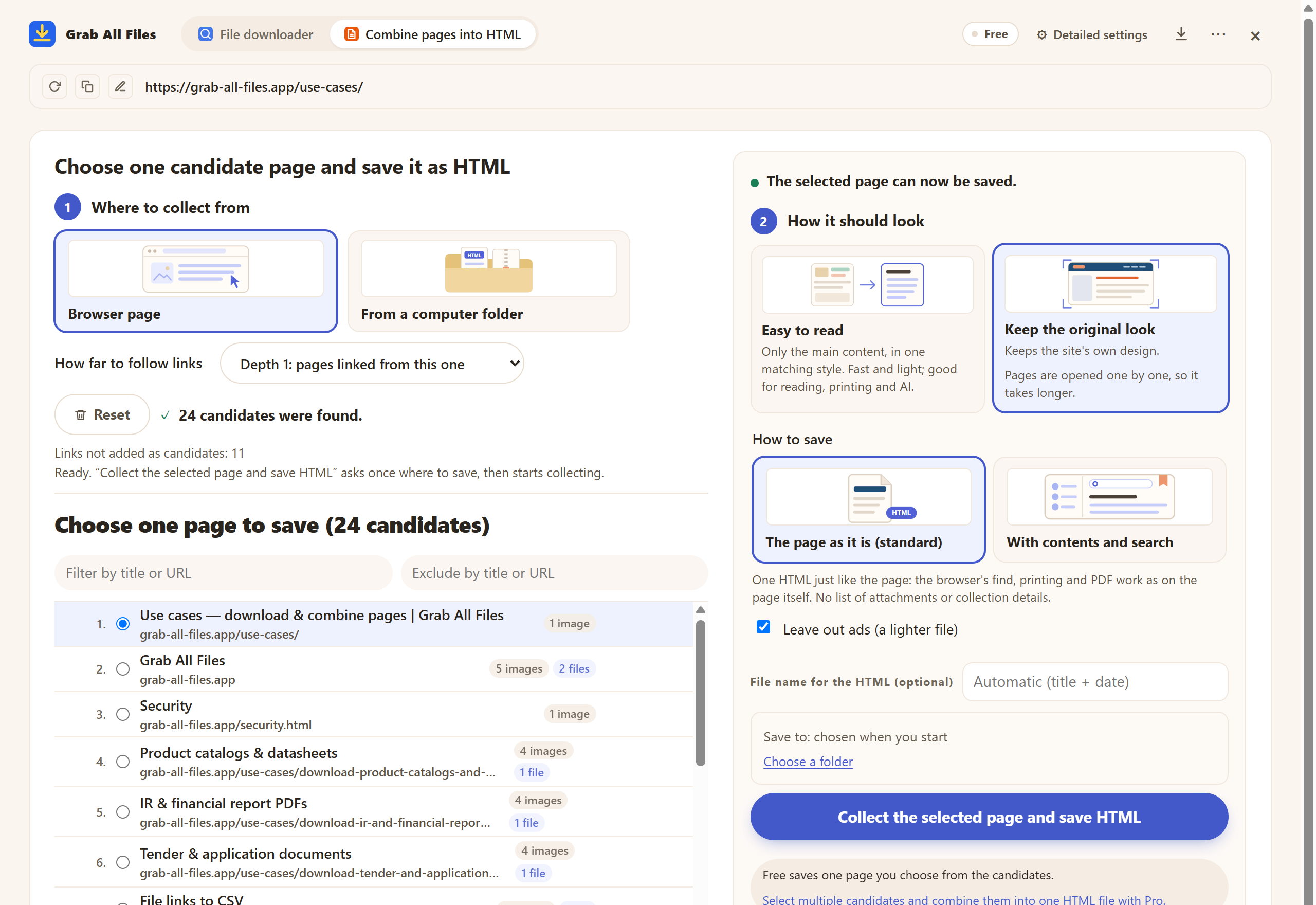
Actual extension screen using sample materials. “Look” in Combine pages into HTML: “Keep the original look” chosen, with ads left out (the default). A Free example with one selected page, showing settings and controls before saving. Pro combines multiple selected pages as described in this guide.
Open the full-size image ↗





Pictures and names are the extension’s own cards.
Web teams and agencies keep the current site as it looks today, page by page, before it is rebuilt, moved to a new system or taken offline.
Legal, compliance and advertising-review teams keep how a page, an offer or a notice was shown, with the source address and capture time on every page.
Researchers, communities and fans keep pages from a service that is shutting down, in a file that does not depend on the site still being online.
Send pages from a portal, an intranet or a client area to someone without access, as one file they can open offline in any browser.
Designers and marketers collect landing pages and competitor sites as they appear, with the real fonts, colors and spacing.
A website backup folder, or help and manual pages exported as HTML, become one file that still looks like the original.
Each page’s stylesheets are embedded, along with the web fonts it uses (one format per font, WOFF2 first) and its images, including backgrounds.
The page is captured after it settles, before any menu is opened, so closed menus stay closed. Content that fades in on scroll is saved visible.
Lazy-loaded images, pages that grow as you scroll, frames from sites the extension may read, styles of web components, and icons drawn from SVG sprite files.
Images refused when requested from elsewhere are fetched again the way the original page loaded them, once each.
Under each page title: the address it came from and when it was captured. Links to other saved pages and files open inside the file or the save folder.
The same stylesheet, image or font used on many pages is stored once. Ad spaces from ad networks are left out by default, and you can keep them if you prefer.
| Keep the original look | Easy to read | |
|---|---|---|
| What it keeps | The whole page with the site’s own stylesheets, fonts and images | The main text, headings, tables and images in one clean style |
| Header, menus and footer | Kept on every page by default; one option keeps them on the first page only | Left out |
| Several pages | Each page in its own frame, so designs do not clash | One continuous document |
| Interactive parts | Tabs, accordions and carousel arrows work; other scripts do not run | Content is shown opened up for reading |
| File size | Larger; shared files are stored once, unused CSS rules are left out | Smaller |
| Best for | Keeping, evidence, sharing as it looked, design references | Reading, printing, Markdown and AI |
Yes. The look option is not limited by plan. Free saves one page per run, so you can keep any single page with its original design as one HTML file. Combining several pages into one file with a shared table of contents requires Pro ($19.99, one-time, up to 3 devices).
“Save page as” writes a folder of files next to the HTML, and single-page savers produce one file per page. Grab All Files puts many pages in one file and keeps each page in its own frame, so the designs of different pages do not clash. Shared stylesheets, images and fonts are stored once, links between the saved pages jump inside the file, and you can search all pages at once.
The site’s scripts are removed for safety, so features that need them, such as maps, search forms, logins or video players that load on demand, do not run. Common parts are made to work without the site’s scripts: tabs and accordions built with standard accessibility markup or Bootstrap open and close, and carousel arrows (Swiper, Slick, Splide, Glide, Flickity) move one slide at a time. Forms are never submitted.
Yes. For web pages, each page is opened in a tab and scrolled to the end before it is captured, so lazy-loaded images and pages that add more content as you scroll are included. Scrolling stops when the page stops growing or when the time set in “Scroll time” runs out (45, 90 or 180 seconds). Fixed headers, cookie notices and sticky headings appear in their original positions as you scroll the saved file.
Scripts from the original site are removed. The only script left is a small Grab All Files helper that makes tabs, panels and carousel arrows work, and the file blocks requests to the internet when opened, so it does not load trackers or ads from other sites. Login details found in links are removed. The pages are collected in your own browser and saved on your device; their content is not sent to our servers. Before sharing, check that you are allowed to share the pages you saved.
Choose “Easy to read” when you want the text more than the design: for reading long material, printing, smaller files, or preparing Markdown and data for an AI tool. It shows every page in one clean style without the site’s header, menus and footer. “Keep the original look” is for keeping and sharing pages as they appeared.
Collection uses your own browser session and does not collect credentials. If a page is marked “Sign-in needed”, press “Open the site to sign in”, sign in in that tab, then press “Resume”. Pages that still need a sign-in are not saved, and the result says how many were left out.
Free keeps one page per run with its original design, as one offline HTML file. Pro ($19.99, one-time) combines the pages you choose, each in its own design, with a table of contents and search. Pages are collected in your browser and saved on your device.