
Turn a website into files you can hand to NotebookLM, ChatGPT or Claude.
Grab All Files collects the pages of a site and writes AI-ready files: Markdown, JSONL and a manifest, with the source URL and capture time kept for each page. You choose the AI service and upload the files yourself. The extension has no link to those services and sends nothing to them.
Where the extension stops and you start
The extension reads the pages in your browser, converts them on your computer, and saves the files. That is all it does. It does not log in to an AI service, upload anything, or ask a question for you.
You open the AI service you prefer, add the files as sources or attachments, and ask your question there. Which file types and sizes that service accepts, and how it treats uploaded files, are set by the service. Read its current limits and privacy settings before you upload pages from a members-only site.
The route, in five steps
- 1Open the top page of the site, or the index page of the section you care about. If the pages need a sign-in, sign in first in the same browser.
- 2Open Grab All Files, switch to “Combine pages into HTML”, and choose where to collect from: the page’s links, a sitemap, the same path, or a pasted list of URLs. Check the candidate list and remove pages you do not want read.
- 3In the output settings, open “AI analysis data (Markdown with sources)” and choose the output format. “Main content (default)” keeps the article text and leaves out menus and ads.
- 4Run the collection. When it finishes, press “Save AI analysis ZIP” or “Save as one Markdown file”. “Copy AI request text” copies a ready-made request you can paste into the chat.
- 5Open NotebookLM, ChatGPT, Claude or another service yourself, add the files, and paste the request. When you read an answer, check it against the source_url and captured_at of the page it came from.
The AI output settings
This is where the output format, the text to extract and the splitting are chosen.
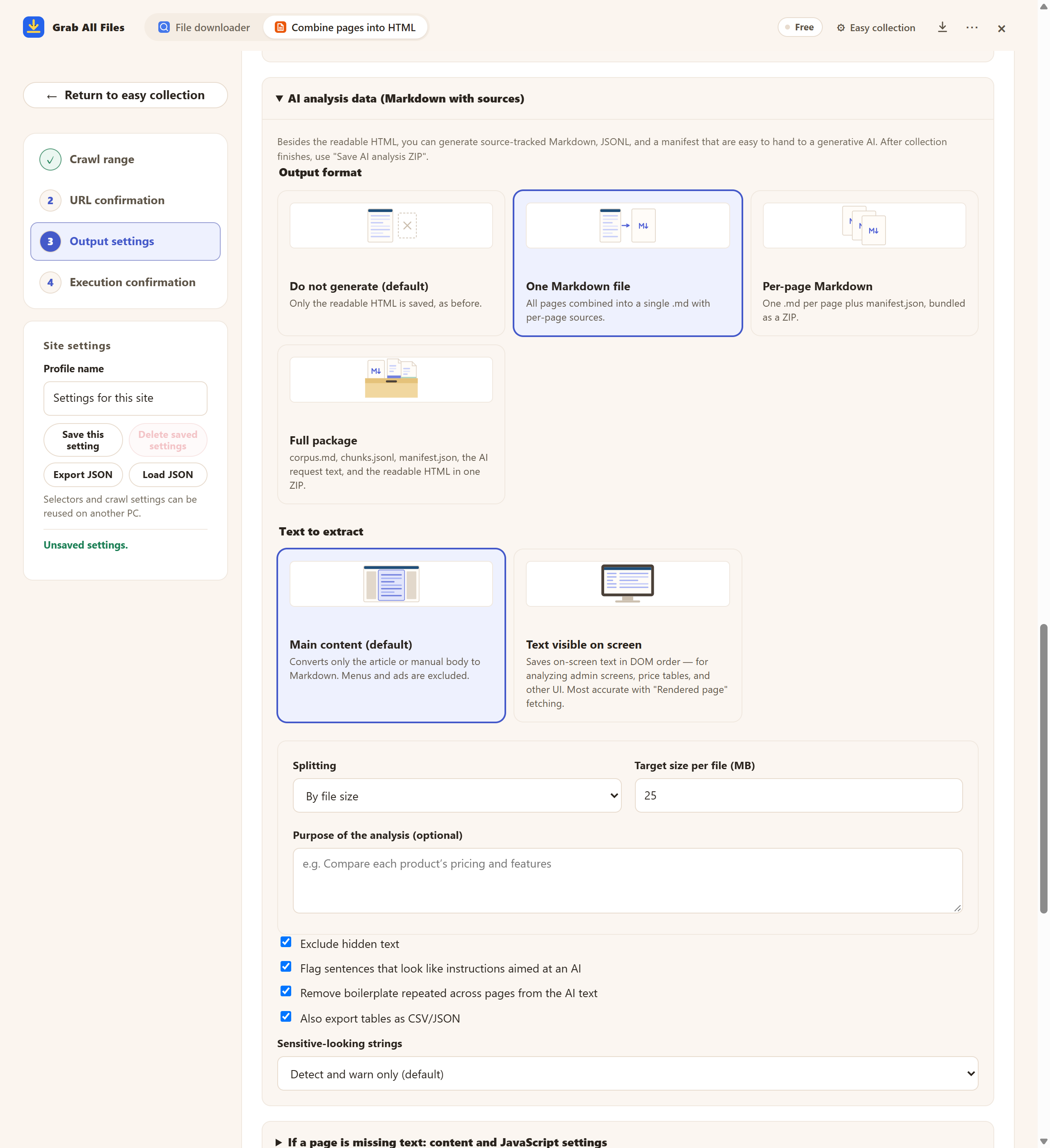
The real panel on the Free plan. Under “AI analysis data (Markdown with sources)” you pick the format; below it, the splitting method and the target size per file, set here to 25 MB.
What each output gives you
| Output | What is in it | Pick it when |
|---|---|---|
| One Markdown file | All pages combined into a single .md, with the source of each page | The site is small enough to add as one source |
| Per-page Markdown | One .md per page plus manifest.json, bundled as a ZIP | You want to choose which pages to give, and the service has a generous limit on the number of files |
| Full package | corpus.md, chunks.jsonl (split by heading), manifest.json, the AI request text and the readable HTML, in one ZIP | You want everything, including a file list for checking |
| Tables as CSV/JSON (option) | The tables on the pages, written as separate CSV and JSON files | The numbers matter more than the prose around them |
The AI settings appear on the Free plan too; a Free run covers one page, and Pro collects many pages in one run. Every page in the Markdown carries source_url and captured_at. chunks.jsonl and manifest.json carry them too, so a passage can be traced back to its page and the time it was saved.
What the 25 MB setting means
The default of 25 MB is a target for splitting the Markdown text into files. It is not a cap on the whole ZIP, and it does not promise that a service will accept a file of that size. The full package is a ZIP of corpus.md, chunks.jsonl, manifest.json, the request text and the readable HTML, so it is larger than the Markdown alone.
If the service you use takes smaller files, lower the target under “By file size”. If it limits how many files you can add, raise the target, or choose one Markdown file. The right number comes from the service’s own limits, which can change.
One file is enough when
- ✓The site is a few dozen pages and the Markdown stays well under the service’s size limit.
- ✓You want to ask questions across the whole site and keep one source to manage.
- ✓You do not need to leave individual pages out later.
Split by page or by size when
- ✓The text is larger than the service accepts in one file.
- ✓You want to add only some sections, or replace one page after the site changes.
- ✓You want a file per page so that an answer points to a single source file.
Related guides
- Collect, read & analyze with AIThe wider workflow: linked PDFs and Office files, the request text, and checking answers.
- Web sources as MarkdownMarkdown for note-taking tools and a personal knowledge base.
- Save all blog and news articlesCollecting every article of a blog or news section first.
FAQ
Does Grab All Files send my pages to NotebookLM, ChatGPT or Claude?
No. It saves files on your computer. You upload them to the AI service yourself, and that service’s own rules then apply to the files.
Should I use one Markdown file or one file per page?
Use one file for a small site you want to question as a whole. Use per-page files, or a smaller size target, when the text exceeds the service’s file limit or you want to add and replace pages separately.
What does the 25 MB default mean?
It is the target size for splitting the Markdown text. It is not a size limit for the ZIP, and it does not guarantee that a service accepts the file.
How can I tell which page an AI answer came from?
Each page in the Markdown has source_url and captured_at, and chunks.jsonl and manifest.json carry them too. Look up the page and compare the answer with the original.
Can it read pages that need a sign-in?
Yes, if you are signed in to the site in the same browser. It uses that session and does not collect your password. The output contains what the browser showed, so think about who will see the files before you upload them.
Try Grab All Files on your browser.
Free saves up to 10 files per download in the file downloader, and one chosen page per run when you combine pages into HTML; that page’s linked files are saved 10 at a time with “Save the next 10 files”. Pro ($19.99 one-time, up to 3 devices) removes the per-download cap and combines multiple pages into one HTML.