
Sitemap
If the site publishes a sitemap, the URLs it lists become candidates. The candidate count is a rough guide to how many pages the site lists.
A blog or a news section is a long list of articles with a “Next” link at the bottom. Grab All Files finds the articles, lets you drop the ones you do not want, and saves them as one HTML with contents and search, one long printable HTML, or Markdown. On the Free plan you save one article per run; Pro saves the whole selection at once.
If the site publishes a sitemap, the URLs it lists become candidates. The candidate count is a rough guide to how many pages the site lists.
Start from the blog’s list page and collect the pages under the same path, such as everything below the blog folder. It leaves out the rest of the site.
Links marked next, “Next”, “Older” and similar are recognised. The list is followed page by page to find the candidates. Up to 100,000 candidates are found.
Candidates are listed with how each was found. Below them you choose the look and one of four forms.
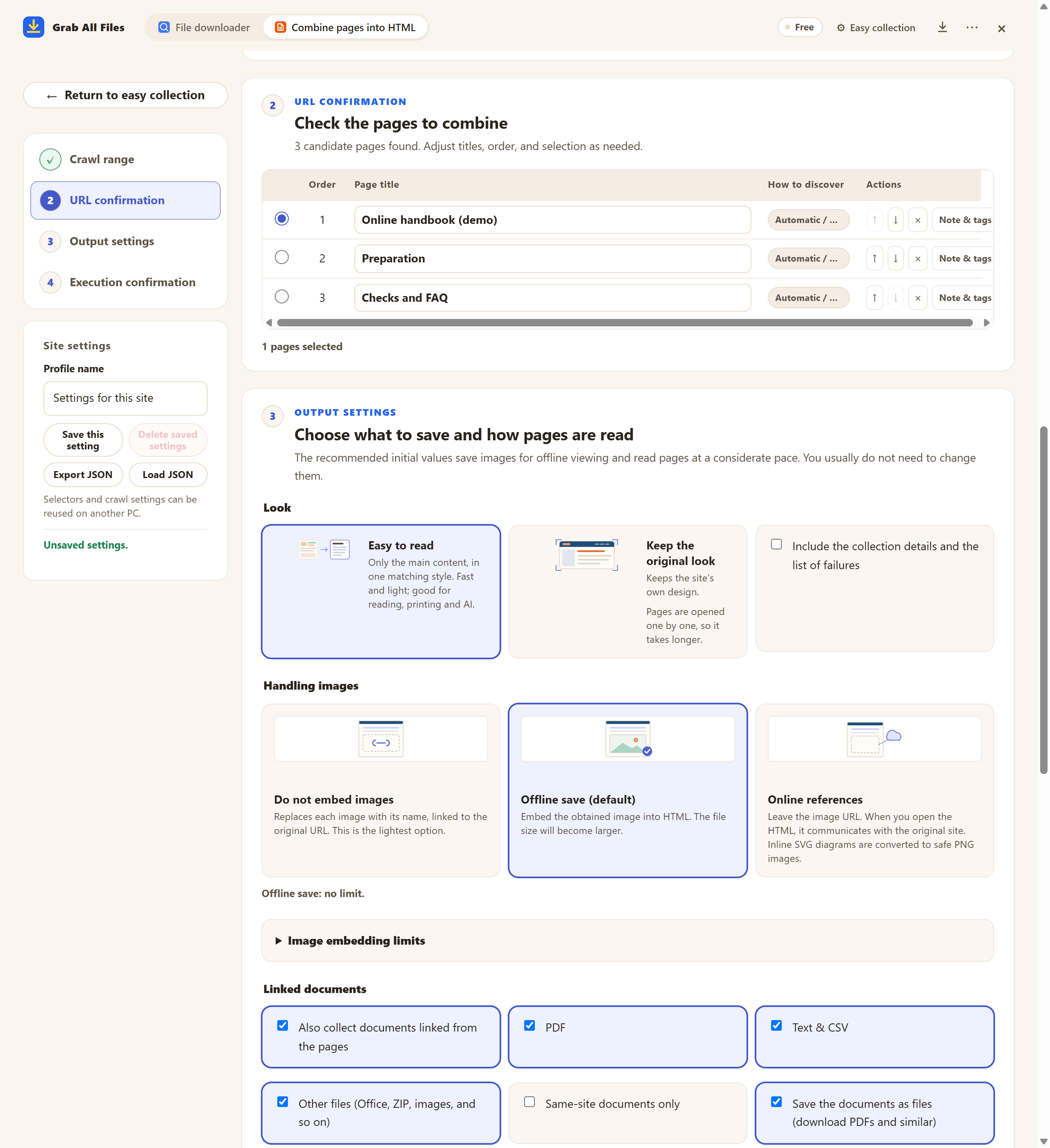
The real panel on the Free plan, with three candidate pages. Each row has buttons to move it or remove it. Below, the look is chosen first, then one of the four forms.
| Form | What you get | Good for |
|---|---|---|
| HTML with contents and search | All articles in one HTML file, with a table of contents and a search box | Reading on screen and finding a phrase across hundreds of articles. The smallest of the forms. |
| Vertically joined HTML (for printing) | Articles joined top to bottom, with a page break between them when printed | Printing, or a PDF: use the browser’s print dialog and save as PDF. Grab All Files does not create the PDF itself. |
| Markdown | One Markdown file, or one per article, with source_url and captured_at on each page | Notes, a personal archive, or giving the text to an AI service you choose. See the Markdown guide below. |
For articles, “Easy to read” is usually the right look: it is faster and the file is lighter. “Keep the original look” keeps each article’s layout, fonts and images, at the price of a longer run and a bigger file.
Grab All Files reads each article inside the browser, so a run over thousands of articles takes a long time and produces a very large file. For a news archive of that size, a desktop website copier that asks the server for pages directly is the better choice, though it cannot see pages behind your sign-in.
A list that loads more items as you scroll, instead of using “Next” links, is a different case. Read the guide on infinite scroll before you start.
Open the blog’s list page, choose the sitemap, “Same path” or “Follow the links on this page”, drop the non-article pages from the candidate list, and save with Pro in one run. On the Free plan you save one article per run and add the rest one at a time.
Yes. Links such as next, “Next” and “Older” are recognised and followed to find candidates. With Pro it can also save all the continuing pages in one run.
Save as “Vertically joined HTML (for printing)”, open it in the browser and use the print dialog to save as PDF. Each article starts on a new page when printed.
Save as “HTML with contents and search”. The one HTML file has a table of contents and a search box that works offline in the browser.
Comment sections are a separate task. See the guide on saving and analysing comments; this page covers the articles themselves.
Free saves up to 10 files per download in the file downloader, and one chosen page per run when you combine pages into HTML; that page’s linked files are saved 10 at a time with “Save the next 10 files”. Pro ($19.99 one-time, up to 3 devices) removes the per-download cap and combines multiple pages into one HTML.