
Save competitors' price lists and product pages on a routine, and see what changed.
To know what a competitor changed, you need what their pages said last time. This page describes a routine that uses two things Grab All Files already does: it saves a set of pages and turns their tables into CSV, and it compares a new collection of the same site with the previous one in a change report. You start each run yourself, for example on the first of the month. The extension has no scheduled-run feature and does not run on its own. Follow the site's terms of use.
What you save, and in which form
| Typical page | Save it as | What you do next | |
|---|---|---|---|
| Price table | An HTML table of plans, sizes or tiers | HTML, plus the table as CSV or JSON | Open the CSV in a spreadsheet and put it beside last month's |
| Product page | Description, specifications, options, notes on delivery | HTML with the original look, or Markdown | Read the change report for edits to the text |
| Catalog or price-list PDF | A linked PDF with a date in its title | The file itself, named by title | Compare by hand; see the guide for revisions |
| Campaign or notice page | A banner page that changes often | HTML with the date shown | Keep as a dated record of what was offered |
The routine, each month
- 1Keep a short list of the pages: the price page, two or three product pages, the page where the catalog is linked.
- 2Open “Combine pages into HTML”, choose where to collect from (for example “Use a pasted list of URLs”), and keep the same starting pages every time. The change report compares with the previous completed collection of the same site.
- 3If you also want the tables as files, choose an output in the AI data options and turn on writing tables as CSV and JSON. The change report is separate: when the run has finished, open “More” and choose “Save change report vs. previous run”.
- 4Save the collection. On Free a run saves one page you choose, and the AI output and table CSV work for that one page; Pro saves all selected pages in one run.
- 5Open the change report and the new CSV. Copy the new CSV into a sheet beside last month's and note the differences.
- 6Rename the saved files by hand to include the month, so that you can tell the months apart. The extension does not add dates to names; files with the same name are numbered automatically, not overwritten.
Where the change report is
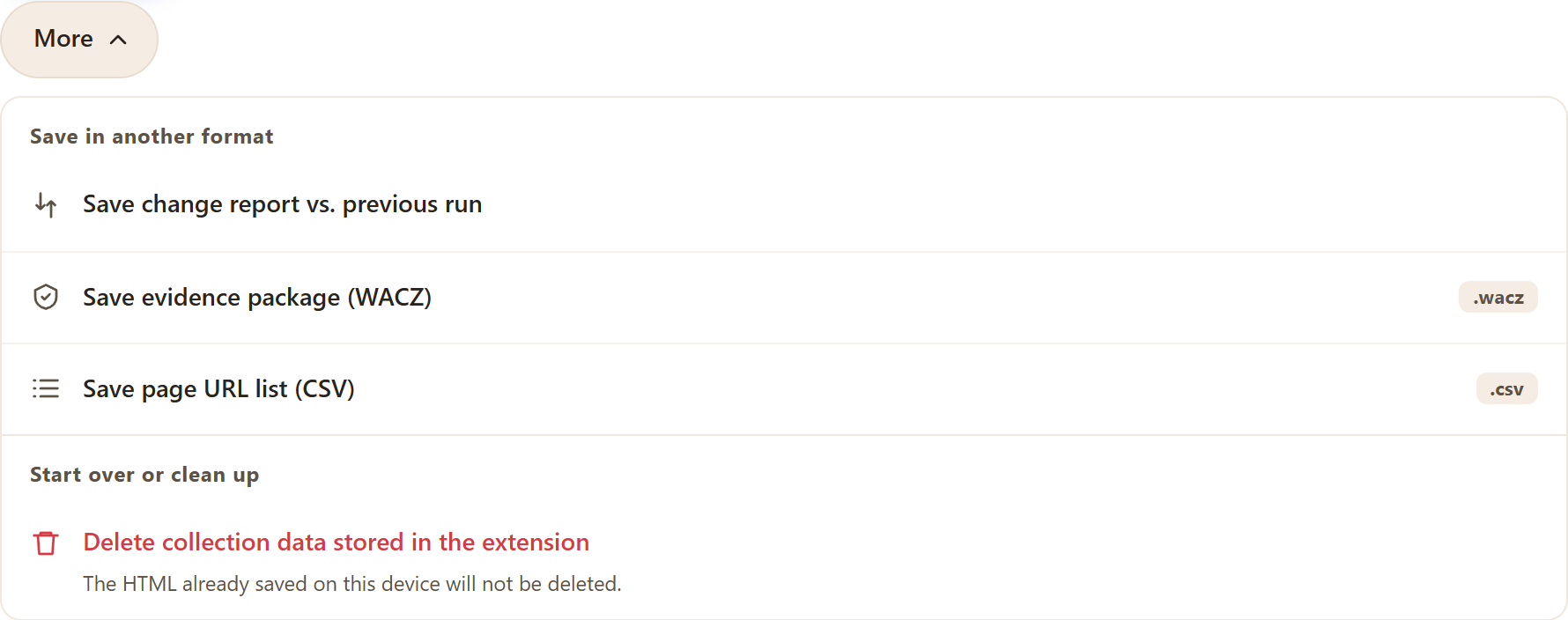
The real More menu on a finished collection. The change report compares this collection with the previous completed one of the same site.
What the routine gives you
- ✓A dated copy of each page, so you can see what the page said in a given month.
- ✓Tables you can sort and compare in a spreadsheet, not pictures of tables.
- ✓A report of pages whose URL, title or body text changed since last time.
- ✓The source URL and capture time, shown or stored in different places depending on the form you save.
What it does not do
- –Run by itself on a schedule, or alert you when a price changes.
- –Read prices that are drawn only on a canvas or loaded after you log in, if you are not signed in.
- –Judge whether a competitor's change matters.
- –Collect from sites whose terms forbid it. Check the terms of each site, and keep the frequency low.
A few things that go wrong
If the price is shown only after you choose a region or a plan, choose it in your browser first. Pages are saved as the browser displays them. If the table is built by script, wait for it to appear before saving.
If the start pages change from month to month, the change report has nothing sound to compare. Keep the starting pages and the collection method the same.
Related guides
- Web tables to CSVTurning the tables of a page into CSV or JSON.
- Save & compare revisionsHow the change report compares two collections.
- Save pages with source URL and dateWhich saving forms keep the source URL and the date.
FAQ
Can it check competitor prices automatically every week?
No. Grab All Files has no scheduler. You start each collection yourself. The routine here is something you repeat by hand.
How does it compare this month with last month?
The change report compares a collection with the previous completed collection of the same site, by URL, title and body text. For tables, keep each month's CSV and compare them in a spreadsheet.
Can I get the price tables as CSV?
Yes. In the AI data options there is a setting to write tables as CSV and JSON as well, and it works on Free for a single page. Check the result on your own pages, because tables built oddly may not come out cleanly.
Is it allowed to save a competitor's pages?
That depends on the site's terms of use and the use you make of the copy. Read the terms, collect only what you need, and do not republish the content.
Does the saved page show where and when it was captured?
It depends on the form. With “Keep the original look” and the contents-and-search form, each page shows its original URL and capture time under the title. With separate HTML pages (ZIP), they are in a comment at the top of each HTML, and with vertically joined HTML they are in HTML comments. With “Easy to read”, no source URL line is shown, and the capture time appears at the top only if you turn on the option for capture details and the failure list.
Try Grab All Files on your browser.
Free saves up to 10 files per download in the file downloader, and one chosen page per run when you combine pages into HTML; that page’s linked files are saved 10 at a time with “Save the next 10 files”. Pro ($19.99 one-time, up to 3 devices) removes the per-download cap and combines multiple pages into one HTML.