
Policy terms
The long PDF with the full conditions. It is sometimes split into general terms and special provisions, each its own file.
An agency or a comparison desk often needs the same set of PDFs for each product: the policy terms, the brochure, the document that explains key points, and the notice of revisions. Grab All Files finds the PDFs on a product page, lets you pick the ones you need, and saves them with names and folders that make sense to you. It does not read the contents or record versions for you. You write down the version and the revision date yourself.
The long PDF with the full conditions. It is sometimes split into general terms and special provisions, each its own file.
The sales leaflet. A product may have one, or a separate one for each plan or rider.
The explanation of important matters. Some insurers publish one file per sales channel or age group.
The summary sheet of the contract, where the insurer publishes one.
A list or page of changes with dates, posted as PDFs or as ordinary web pages.
Claim forms, change-of-address forms and procedure guides that are linked from the same product page.
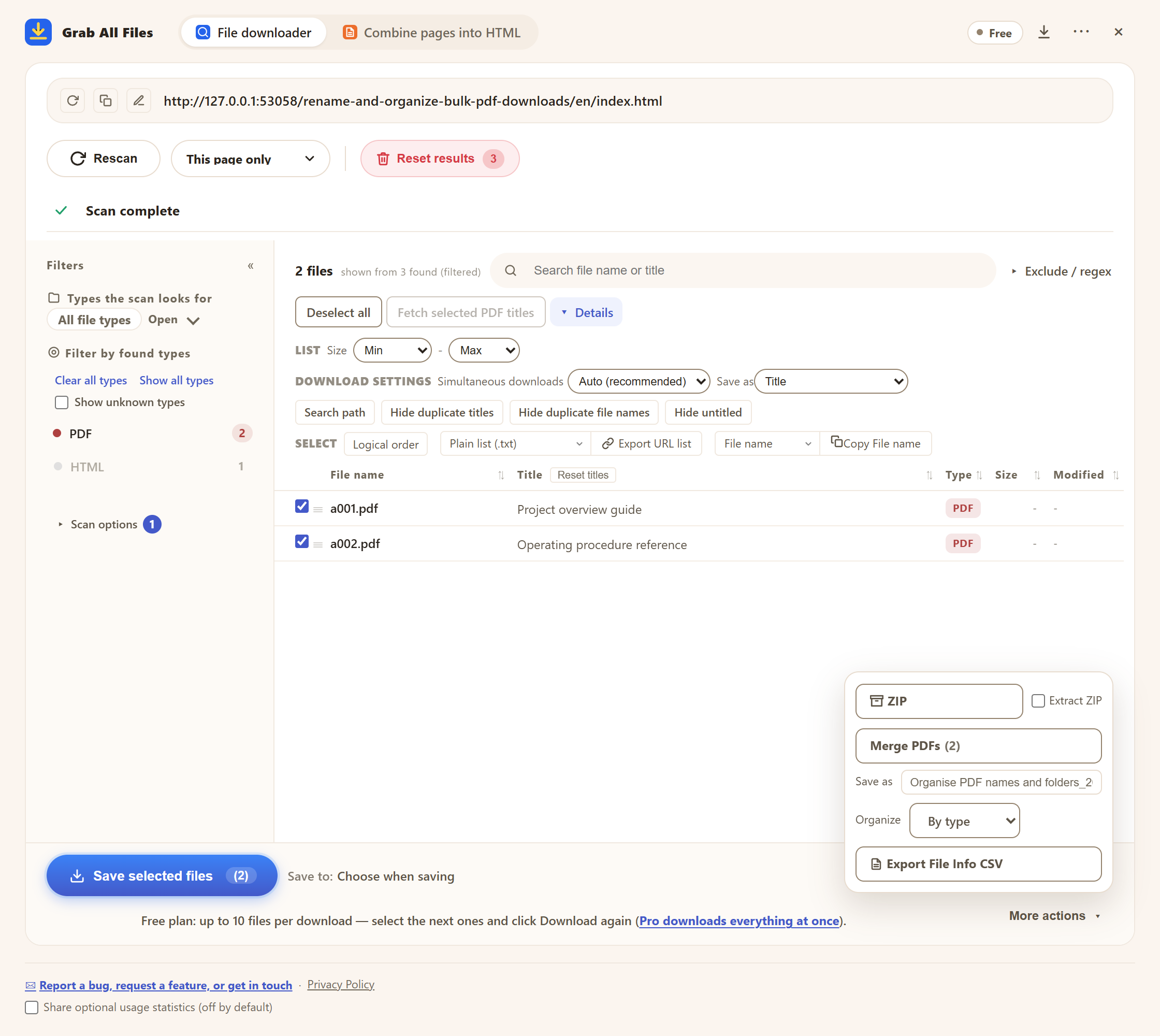
The real panel on the Free plan, with sample files. Here the file name is set to the title and the folders are sorted by type.
The extension saves the files. It does not know which version of the terms a PDF is. Keep that information in the file name or in a sheet of your own.
| What to write down | Where it comes from | Example name | |
|---|---|---|---|
| Version or edition | The edition mark printed in the PDF | Open the PDF and read the cover or footer | ProductA_terms_edition-12.pdf |
| Revision date | The date the insurer gives for the change | The notice page or the PDF itself | ProductA_terms_2026-10-01.pdf |
| Date you collected it | The day you saved the file | The ZIP name includes the date; or note it yourself | ProductA_brochure_got-2026-11-17.pdf |
| Channel or plan | Which sales channel or plan the file is for | The product page and the PDF title | ProductA_key-info_agency.pdf |
| Source page | The page where you found it | The Source page column in the file-information CSV | (kept in the CSV) |
The simplest way to compare two editions is to keep both PDFs in the same product folder with the edition or date in the name, then open them side by side. The “Modified” column in the file-information CSV is the date the server reports for the file. It is not the revision date the insurer prints, so do not use it as one.
If the insurer publishes its revision notices as an ordinary web page, you can save that page with “Combine pages into HTML” on each visit. The change report then compares the latest collection of that same site with the previous completed one, by URL, title and body text. It compares web pages, not the inside of PDFs.
You scan one page at a time, or follow links from a start page with “Depth 1” to “Depth 5”. The list shows every PDF found, and you choose which to save. On Free, one save is limited to 10 selected files; Pro has no per-save limit.
No. The file-information CSV has the file name, title, size, the date the server reports for the file and the page it was found on. The edition and the revision date are things you read from the document and write down.
Not by itself. You open the notice page or the product page again and save what changed. For ordinary web pages, the change report compares your latest collection with the previous one of the same site.
It can use the PDF's title as the file name, and sort folders by type or by site. A product name that is not in the title or the site name is something you add yourself, by renaming afterwards or in your sheet.
No. Files go from the insurer's site to your computer, and the work happens in your browser. Only the license check, and optional usage statistics if you turn them on, reach the developer.
Free saves up to 10 files per download in the file downloader, and one chosen page per run when you combine pages into HTML; that page’s linked files are saved 10 at a time with “Save the next 10 files”. Pro ($19.99 one-time, up to 3 devices) removes the per-download cap and combines multiple pages into one HTML.