
Website copier, one-page saver, download manager or Grab All Files: what each method is good at.
These four kinds of tool overlap, so the question is which method fits the job: how many pages, whether you need to sign in, whether the page is drawn by JavaScript, and whether you will repeat it. The table compares the methods in general terms, with “often” where products differ. It names no products. Grab All Files is the fourth column, and the rows where it is the wrong choice are marked in plain words.
The four methods, row by row
The first three columns describe what is usually true of that kind of tool. Individual products differ, so check the one you are considering.
| Desktop website copier | One-page saver extension | Download manager | Grab All Files | |
|---|---|---|---|---|
| Pages behind a sign-in | Often requests pages straight from the server, so a sign-in needs extra setup and sometimes cannot be done. | Works, because it saves the page your browser is already showing. | Mostly built for file links. Some can reuse the browser's sign-in; many cannot. | Works. It uses the sign-in of the browser you are in. It does not store passwords or get past a CAPTCHA. |
| Pages drawn by JavaScript | Often saves the HTML as the server sends it, so a page built in the browser can come back nearly empty. | Works, because it saves what is displayed. | Not its purpose. It does not render pages. | Works. It saves what the browser displays. |
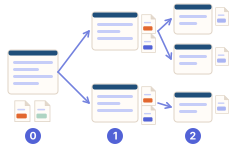
| Thousands of pages | A good fit. This is what the method is for. | Not a fit. It saves one page per action. | Many files are fine. Whole pages are not what it is for. | Not a good fit. It reads one page at a time inside the browser, so it is slow at that scale. One crawl reads at most 100,000 pages. |
| Updating a copy: re-download only what changed | Often has it. | Does not have it. | Often not. It is built to fetch files, not to compare copies. | Does not have it. A Markdown change report compares with your last saved collection of the same site, but it does not re-fetch only what changed. |
| How the page looks | Often rewrites links and writes the site out as folders. | Often puts the page into one file with its styles and images. | No saved page. | Two looks, “Easy to read” and “Keep the original look”, and four forms of saved file, including one that writes the site's folder layout (Chrome and Edge only). |
| Finding the files inside a page | Usually by file extension, with include and exclude rules. | Not its purpose. | Usually lists the links on a page and saves the chosen ones. | Detects 708 file types in 38 categories, including PDFs in iframes and files loaded by fetch/XHR or blob URLs, and lists them to check before saving. |
| Where it runs | A program you install on your computer. | A browser extension. | A program on your computer, sometimes linked to the browser. | A browser extension for Chrome, Edge and Firefox. Pages and files go from the source site to your computer. |
| Cost and buying | Varies by product. | Varies by product. | Varies by product. | Free to use. Pro is US$19.99, paid once, for up to 3 devices. |
Where Grab All Files is the right choice
- ✓You must sign in to see the pages, and you can already open them in your browser.
- ✓The pages are built by JavaScript and a plain download comes back empty.
- ✓You want the PDFs and Office files listed first, so you can check them and keep only some.
- ✓The job is a limited set of pages, or a long list of files on a few pages.
Where it is the wrong choice
- –A whole site of thousands of pages, copied in one go.
- –A copy you refresh every week, fetching only the files that changed.
- –Video that is streamed rather than linked as a file.
- –Pages that you cannot open in your own browser.
Why the method matters
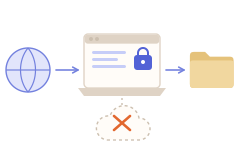
Much of the difference in the table comes from where the tool runs and what it can see from there.
Using more than one
The methods are not rivals. A common split: use a desktop website copier for a big public site, and Grab All Files for the signed-in area of the same site, or for the PDFs scattered across a few pages. The file list from Grab All Files can also be exported as CSV, with the URL of every file, if you want to pass it to another tool.
Related guides
- What it can and cannot doThe limits and unsupported pages, with numbers.
- Save an entire websiteSaving a site of a few hundred pages, step by step.
- Save pages and files behind a loginPages and files that need a sign-in.
FAQ
Is Grab All Files a website copier?
Not in the usual sense. It saves pages one at a time inside your browser, and can write a site's folder layout to your computer. It suits a limited set of pages. For thousands of pages, use a desktop website copier.
Which method works on a site I have to sign in to?
A tool that runs inside your browser, because it uses the sign-in you already have. Grab All Files and one-page saver extensions work this way. Desktop copiers often need extra setup for it.
Can I refresh a saved copy and download only what changed?
Not with Grab All Files. It has a Markdown change report that compares with your last collection of the same site, but it saves the pages again. A desktop website copier is the method built for updating.
How is it different from a download manager?
A download manager takes a list of file links and fetches them well. Grab All Files finds the files first, including ones a page loads by script, shows them in a list to check, and can also save the pages as HTML.
Try Grab All Files on your browser.
Free saves up to 10 files per download in the file downloader, and one chosen page per run when you combine pages into HTML; that page’s linked files are saved 10 at a time with “Save the next 10 files”. Pro ($19.99 one-time, up to 3 devices) removes the per-download cap and combines multiple pages into one HTML.