
Save a whole website, including pages you can only see after signing in.
Grab All Files saves pages the way your browser shows them, so it also works on member areas and sites built with JavaScript. It fits sites of a few dozen to a few hundred pages. For thousands of pages, or for keeping a copy up to date, a desktop website copier is the better tool, and this page says so below.
Where it works well
- ✓You must sign in to see the pages: a member site, a supplier portal, a course you are enrolled in.
- ✓The pages are drawn by JavaScript, so a plain download of the HTML comes back nearly empty.
- ✓The site has a few dozen to a few hundred pages, and you want to read them offline with the original layout.
- ✓The pages link to PDFs, Word or Excel files that you want in the same folder.
Where another tool fits better
- –Thousands of pages, or a whole domain with no clear starting page.
- –Refreshing the copy every week and downloading only what changed.
- –Video or audio that is streamed rather than linked as a file.
- –Pages you cannot open in your own browser.
What you choose before saving
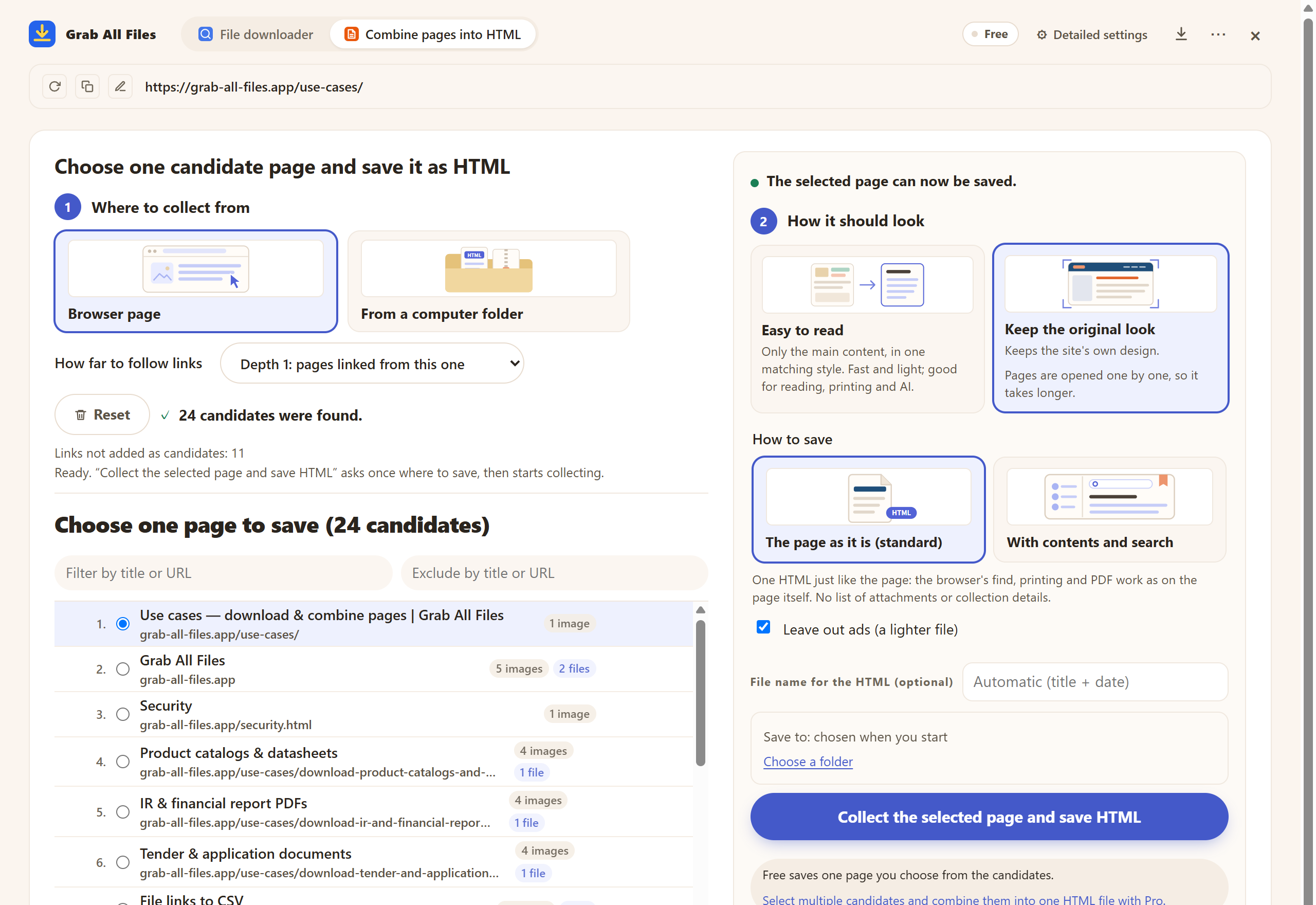
The real panel on the Free plan. Step 4 chooses the look; step 5 chooses one of four forms. Site copy in a folder is the one that rebuilds the site's folders on your computer.
Four ways the copy can be stored
All four are available with “Keep the original look”. On Free you save one page per run in any of them; Pro saves many pages in one run.




Steps, with Pro
- 1Sign in to the site in the same browser if it needs a sign-in, and open the page you want to start from — usually the home page or the table of contents.
- 2Open Grab All Files and switch to “Combine pages into HTML”. Under how far to collect, choose to look for linked pages, or use a sitemap or a pasted URL list for more control.
- 3Check the candidate list. Remove pages you do not need and put the rest in the order you want.
- 4Choose “Keep the original look” and the form “Site copy in a folder” (or a ZIP if you are on Firefox), then pick the destination folder and start.
- 5If the pages link to PDFs or Office files, they are saved next to the pages: up to 100 per run on Pro, with a button on the result screen for the rest.
Free and Pro for a whole-site copy
| Free | Pro ($19.99, one-time) | |
|---|---|---|
| Pages per run | 1, chosen from the candidate list. You can add more pages one at a time to the same folder. | As many as you select, in one run. Over 100 pages, it first asks whether to pause every 100 pages. |
| Finding the pages | The candidate list, “Next” links included | The same |
| Linked PDFs and Office files | 10 per run, then “Save the next 10 files” | 100 per run, then the same button |
| Forms of the saved file | All four | All four |
How the saved pages behave
Each page keeps its own stylesheets, web fonts and images. Files shared by many pages are stored once. The site's scripts are removed, and the saved pages do not connect to the network when you open them, so tabs, accordions and carousel arrows still work but forms, search boxes that query the server and embedded video players do not.
Before saving, each page is opened in a tab and scrolled so that lazy-loaded images appear. The time it spends on that follows the “Scroll time” setting (45, 90 or 180 seconds). Ads are left out by default, and the header, menu and footer repeated on every page can be kept on the first page only.
When the site has thousands of pages
Grab All Files reads each page inside your browser, one after another. That is what lets it save signed-in and JavaScript pages, and it is also why a site of several thousand pages takes a long time. If you need thousands of pages, or want to re-download only the files that changed since last time, use a desktop website copier. Those programs request pages directly from the server, which is faster for large public sites but cannot see pages that need your sign-in or are built in the browser.
A real result to open
Three fictional pages on this site saved with “Keep the original look” into one HTML with contents and search, by the released extension.
Related guides
- Pages with the original designHow “Keep the original look” stores fonts, images and frames.
- Archive a site before it closesWhen a site is about to close or be redesigned.
- Crawler vs page saver vs download managerDesktop copiers, one-page savers and download managers compared by method.
FAQ
Can I browse the saved copy offline by clicking its links?
Yes, with “Site copy in a folder” (Chrome and Edge) or “Separate HTML pages (ZIP)”. Links between pages you saved open the saved files. Links to pages you did not save still point to the live site.
Does it work on pages that need a sign-in?
Yes, if you can open them in the same browser. It uses your existing sign-in and does not store or send your password. If the session expires during a long run, it pauses; sign in again and press Resume.
How many pages can I save for free?
One page per run. You can keep adding pages one at a time to the same saved copy. Pro saves all the pages you select in one run.
Will it copy the site exactly?
It saves what the browser displays, with the site's styles and images. Server-side features such as search, forms and logins do not work in the copy, and streamed video is not saved.
Are the pages sent anywhere?
No. Pages are read and saved on your computer. Only the license check, and usage statistics if you turn them on, reach the developer's server.
Try Grab All Files on your browser.
Free saves up to 10 files per download in the file downloader, and one chosen page per run when you combine pages into HTML; that page’s linked files are saved 10 at a time with “Save the next 10 files”. Pro ($19.99 one-time, up to 3 devices) removes the per-download cap and combines multiple pages into one HTML.