
Save the PDFs from a search result page and name them by title.
Public databases of statutes, court decisions and patents show a result page with a PDF behind each row. Grab All Files scans that page, lists every PDF it finds, and saves the ones you tick. It saves documents. It does not judge whether a text is current, correct or applicable, and it gives no legal advice. When you need thousands of documents, use the bulk download or API that the provider offers.
What you collect, and how each kind tends to be published
| Typical file | What the result page looks like | Name (title is automatic; the rest you type) | |
|---|---|---|---|
| Statutes and regulations | PDF of the consolidated text or of the official gazette page | A list of titles, often with one PDF link per row | Title; add the date saved by hand |
| Court decisions | PDF of the full text, sometimes the judgment and a summary as two files | Result pages with “Next”, one decision per row | Title; add court, date and case number by hand |
| Patents and utility models | PDF of the publication or the granted patent | Hit lists of dozens of rows per page, several pages | Title; add the publication number by hand |
| Guidelines and notices | PDF, sometimes with Word or Excel attachments | A page of links grouped by year | Title; add the issue date by hand |
Only the PDF's title can be applied as the file name automatically (or the original name). Court, date, case number and publication number are not added for you: rename by hand, or keep them in a sheet next to the file-information CSV. Check a few titles before you rely on them.
From a result page to a tidy folder
Narrow the list before you save, then choose how the files come out.
Steps
- 1Run your search in the database in your browser and set the display so that the result page shows as many rows as it allows.
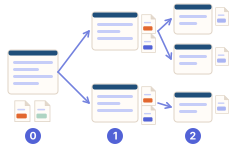
- 2With the result page open, start “Bulk File Download” and scan. If the PDF is not on the result page but on each detail page, choose “Depth 1”.
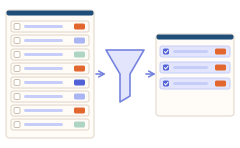
- 3Narrow the list to PDF. Free reads only what is on the screen, so scroll a long result list to the end before scanning. Pro can scroll and follow the list's “Next” pages for you, by default up to 100 pages per scan.
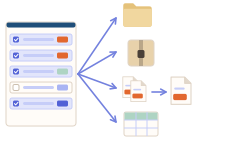
- 4Choose the file name “PDF title”, and a folder sort that suits the work: by type, by site, or none.
- 5Save the selected files. On Free, one save takes up to 10 files; select the next ones and press save again.
- 6Export the file-information CSV. It has the URL, file name, title and the page each file came from, which you can keep as your source list.
When to use the provider's own route instead
- ✓Tens of thousands of documents, or a full year of decisions: look for a bulk download or an API.
- ✓Text you need as structured data rather than PDFs: the provider's data files are better.
- ✓Anything that must stay up to date: the extension does not watch for changes.
- ✓Whether a text is in force or how it applies: that is for a qualified person and the original source.
Terms of use and what the file is
Public databases set their own rules about automatic access, copying and re-use. Read them before you collect in volume, and keep the load modest by saving in batches. Grab All Files does not break through logins or CAPTCHAs.
A PDF you save is a copy of what the site served on that day. Write the date you saved it next to the title in your list, and go back to the source when exact wording matters.
Related guides
- Government documents & guidanceGovernment sites that publish by page and by year.
- Rename & organize PDF downloadsWhy a title is a better name than a code, and what you still rename by hand.
- File links to CSVThe columns of the file-information CSV.
FAQ
Can I download all search results as PDFs?
Most of the PDFs the scan finds on the pages it reads can be saved. PDFs behind DRM or inside a browser's built-in PDF viewer cannot. On Free, one save takes 10 selected files, so a long result list goes in rounds; Pro has no limit per save and can scroll and follow “Next” pages. For very large sets, use the provider's bulk download or API.
Will the PDFs be named by title?
You can set the file name to the PDF's title. The title comes from the PDF itself, so check a few. If a PDF has no title, the file name is used.
Does it tell me whether a law or a case is current?
No. It saves files. Whether a text is in force, correct or relevant to your matter is not something it decides, and nothing on this page is legal advice.
Which databases does it support?
It is not built for one site. It finds files that a page links to or loads, so it often works on pages you can open in your browser. Some files, such as those inside DRM or built-in PDF viewers, cannot be saved, and each site has its own rules for automated access.
Can I keep a source list for citations?
Export the file-information CSV. Its Source page column shows where each PDF was found. The CSV has no column for the date you saved it, and your own identifiers such as case or publication numbers are not filled in, so add them in the sheet.
Try Grab All Files on your browser.
Free saves up to 10 files per download in the file downloader, and one chosen page per run when you combine pages into HTML; that page’s linked files are saved 10 at a time with “Save the next 10 files”. Pro ($19.99 one-time, up to 3 devices) removes the per-download cap and combines multiple pages into one HTML.