
Learning-management system
Sign in with your own account in the same browser, open the course page, and scan. It uses your signed-in state and does not read or send your password. Details for portals in general are in the guide for internal portals.
A term brings dozens of slide decks, handouts, reading lists and syllabi, spread over a learning-management system, a teacher's own site and a few study sites. Grab All Files lists the files on the page you have open and saves the ones you choose. Use it only for materials you are entitled to, for your own study, and follow what the people who provide them allow.
Sign in with your own account in the same browser, open the course page, and scan. It uses your signed-in state and does not read or send your password. Details for portals in general are in the guide for internal portals.
Usually a plain page of links to PDFs and slides. Start from the course page. A depth setting follows links from that page, and only within the folder of the page you started from.
Pages with handouts, problem sets and worked answers. Scan the page for linked files; if the page is long, scroll it before scanning on Free.
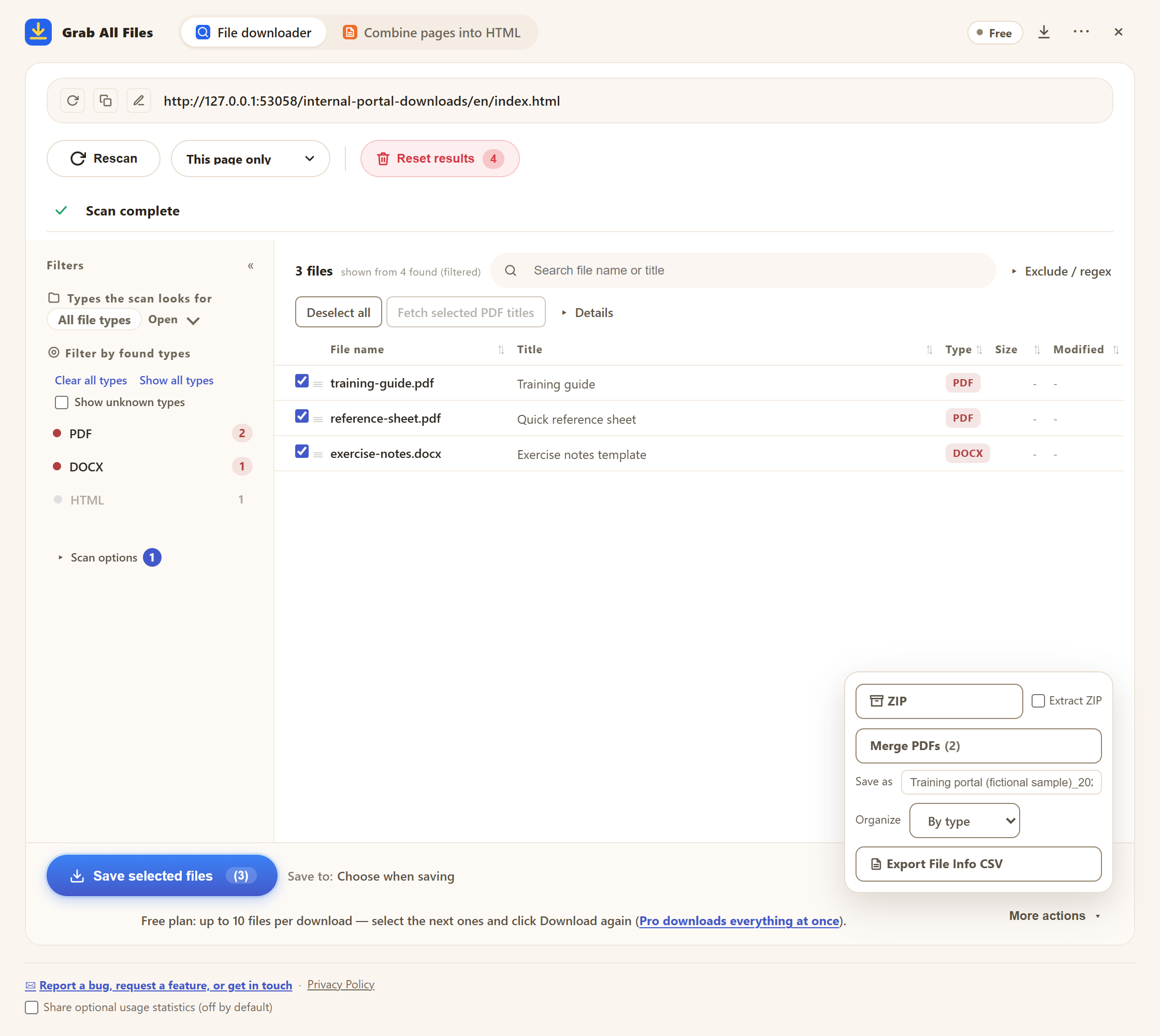
The real panel on the Free plan. The page here is a sample training page, not a real course. Tick the files, set the name and folders, and save.
The depth setting decides how many links away from the start page the scan looks. It stays inside the folder of the start page, so a start page at /courses/networks/ will not wander into /courses/databases/.
| Start from | Choose | Result | |
|---|---|---|---|
| One page of links | The page that lists the slides | This page only | Every file linked on that page |
| Week-by-week pages | The course index that links to week pages | Depth 1 | Files on each week page |
| Nested folders | The course home | Depth 2 or 3 | Files in sub-pages, still inside the course folder |
| A whole department site | (avoid) | Unlimited | Too broad. Start at the course instead |
A syllabus is often a web page and not a file. If you want to keep it, use “Combine pages into HTML” to save that page as HTML, or as Markdown if you want to read it in a notes app. On Free, a run saves one page you choose from the candidate list; Pro saves several in one run.
Yes, if you can open the course page in your browser. It uses the account you are signed in with.
No. It does not log in for you, break a CAPTCHA or open pages you cannot already view.
It can: depth has an Unlimited setting, and a scan reads up to 100,000 pages. That is rarely what you want. Start at the course page and use a small depth, because the scan stays inside the start page's folder anyway.
Up to 10 selected files per save. Select the next ones and save again. Pro has no limit per save.
Only videos that are linked as plain files such as mp4. Streamed lectures, where the page plays video in a viewer, are not saved.
No. You choose the save location each time, so create a folder per course yourself. The built-in folder sorting is only by type or by site, and there is no option to name folders by course.
Free saves up to 10 files per download in the file downloader, and one chosen page per run when you combine pages into HTML; that page’s linked files are saved 10 at a time with “Save the next 10 files”. Pro ($19.99 one-time, up to 3 devices) removes the per-download cap and combines multiple pages into one HTML.