
Collect property sheets, floor plans and drawings into folders by site and by type.
A property listing page, a developer's site or a project-information page links a mix of PDFs and images: the property outline, floor plans, elevations, specification sheets, explanatory documents for the sale. Grab All Files lists them, lets you choose, and saves them into folders by site or by type, with a CSV of what you collected. Use it for materials you have the right to keep, for example your own listings, your client's project, or documents the provider has released for download.
Files you tend to meet on these pages
- ✓Property outline sheets and listing summaries, as PDF.
- ✓Floor plans, as PDF or as images (JPG and PNG).
- ✓Site plans, layout plans, elevations and sections.
- ✓Specification and equipment sheets, finish schedules.
- ✓Explanatory documents for the sale and the contract, such as a template of the disclosure document.
- ✓Photos of the exterior and interior, in the page's image gallery.
- ✓Spreadsheets of room lists or unit prices, as Excel or CSV.
- ✓Application or inquiry forms, as PDF or Word.
Where the files end up
The save options are the same for PDFs and images. Choose the folder sorting that fits the way you will look for them.
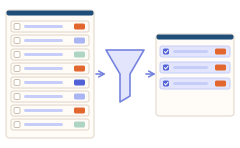
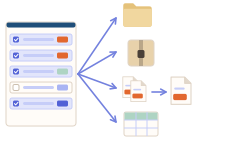

The list and the CSV button
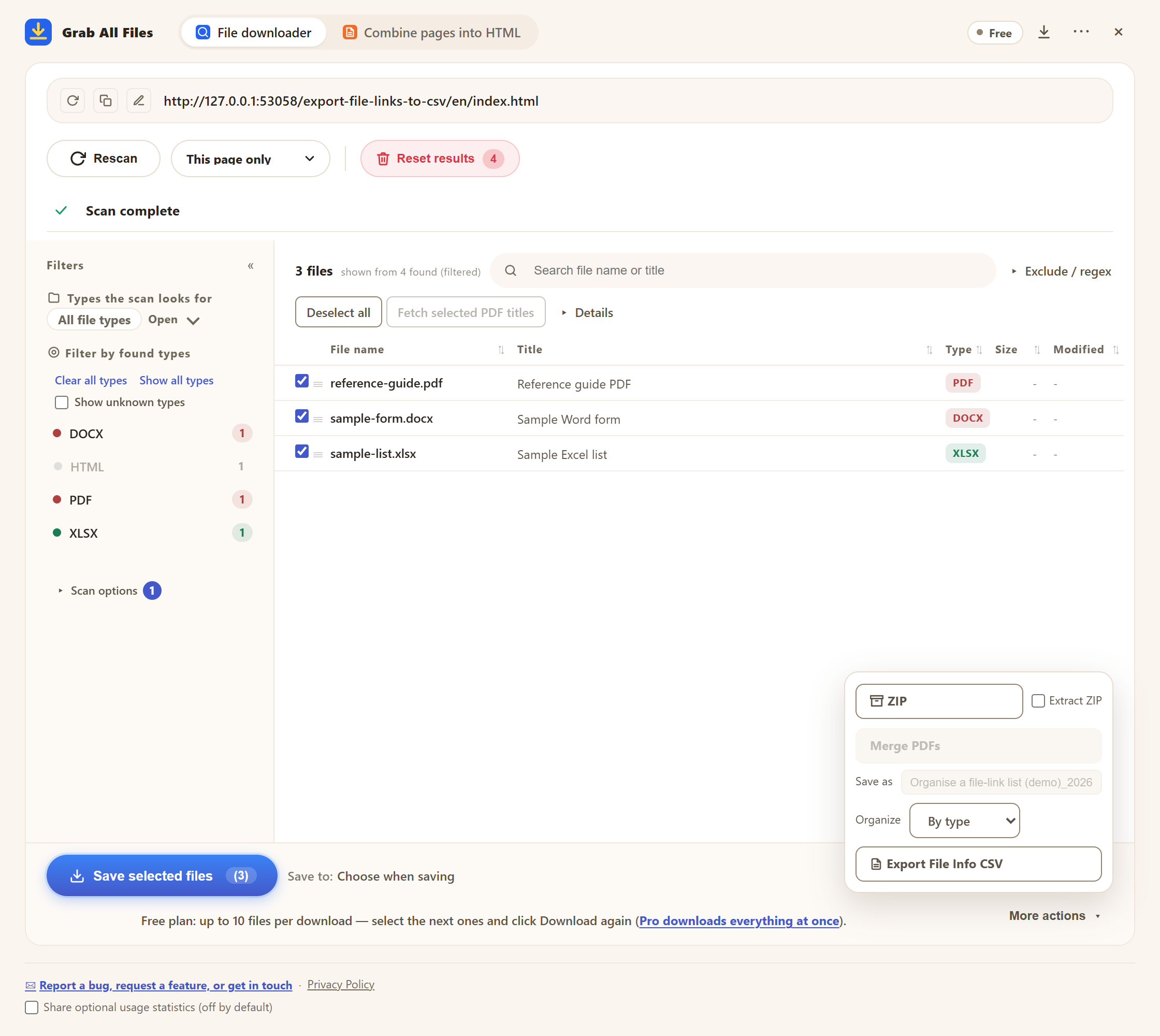
Sample files: a PDF, a Word file and an Excel file found on one page. The type filter on the left counts each kind.
Folder layout: by site or by type
| Sorted by site | Sorted by type | No folders | |
|---|---|---|---|
| Good when | Each source is a different developer, agency or project | You want all floor plans together, all outlines together | You save a handful of files for one property |
| Result | One folder per site name | One folder per file type, such as PDF and JPG | Everything in the save location |
| Then do | Rename by property and document type | Rename by property name and floor | Rename after saving |
The file name can follow the PDF's title. Titles for floor plans and outlines are often generic, so check a few and rename where needed.
Steps
- 1Open the property or project page. If the listing needs a sign-in, sign in in the same browser first.
- 2Open Grab All Files, use “Bulk File Download” and scan. Use “This page only” for one property, or “Depth 1” when each property has its own detail page linked from an index.
- 3Narrow the list to PDF and images, and by size. Tick what you want.
- 4Choose a folder sorting and save. On Free, one save takes up to 10 files, so a property with many plans goes in rounds.
- 5Export the file-information CSV and keep it with the folder. It lists the URL, the file name, the title, the size and the page each file came from.
Before you collect
- ✓Photos and plans belong to their owner. Keep them for your own listings, your client's project or documents offered for download, and do not re-post them.
- ✓A portal may forbid automated copying. Read its terms before collecting hundreds of listings at once.
- ✓Drawings inside viewers that block downloading, or inside a CAD viewer in the page, are not saved.
- ✓Only collect what your own account is allowed to see.
Related guides
- Bulk-download imagesImages from a page, filtered by size.
- Rename & organize PDF downloadsSorting folders by site or type, and renaming by hand afterwards.
- File links to CSVThe file list as a CSV.
FAQ
Can it save floor plans that are images, not PDFs?
Yes. Images the page shows or links are detected and listed along with the PDFs. Filter by size to leave out icons and thumbnails.
Can I keep a register of what I hold for each property?
Export the file-information CSV and sort it by its Source page column in a spreadsheet. There is no property-name column and no date-saved column, so add those yourself.
Does it work on real estate portals?
It may, on pages you can open where the files are loaded by the page. Some files cannot be saved, such as those in viewers that block downloading. Whether automated collection is allowed is set by the portal's terms, which you must check. It does not break through logins or CAPTCHAs.
Can it open drawings from an online viewer?
Files inside viewers that block downloading, or encrypted viewers, cannot be saved. A PDF that the page links directly can.
Is there a limit on the free plan?
Free saves up to 10 selected files at a time, so a listing with 30 floor plans takes three rounds of selecting and saving. Pro removes the limit per save.
Try Grab All Files on your browser.
Free saves up to 10 files per download in the file downloader, and one chosen page per run when you combine pages into HTML; that page’s linked files are saved 10 at a time with “Save the next 10 files”. Pro ($19.99 one-time, up to 3 devices) removes the per-download cap and combines multiple pages into one HTML.